

Logging In
To log in to the Partner Portal, you only require your registered email which will be used to send you a login link. Login links are valid for 15 minutes.
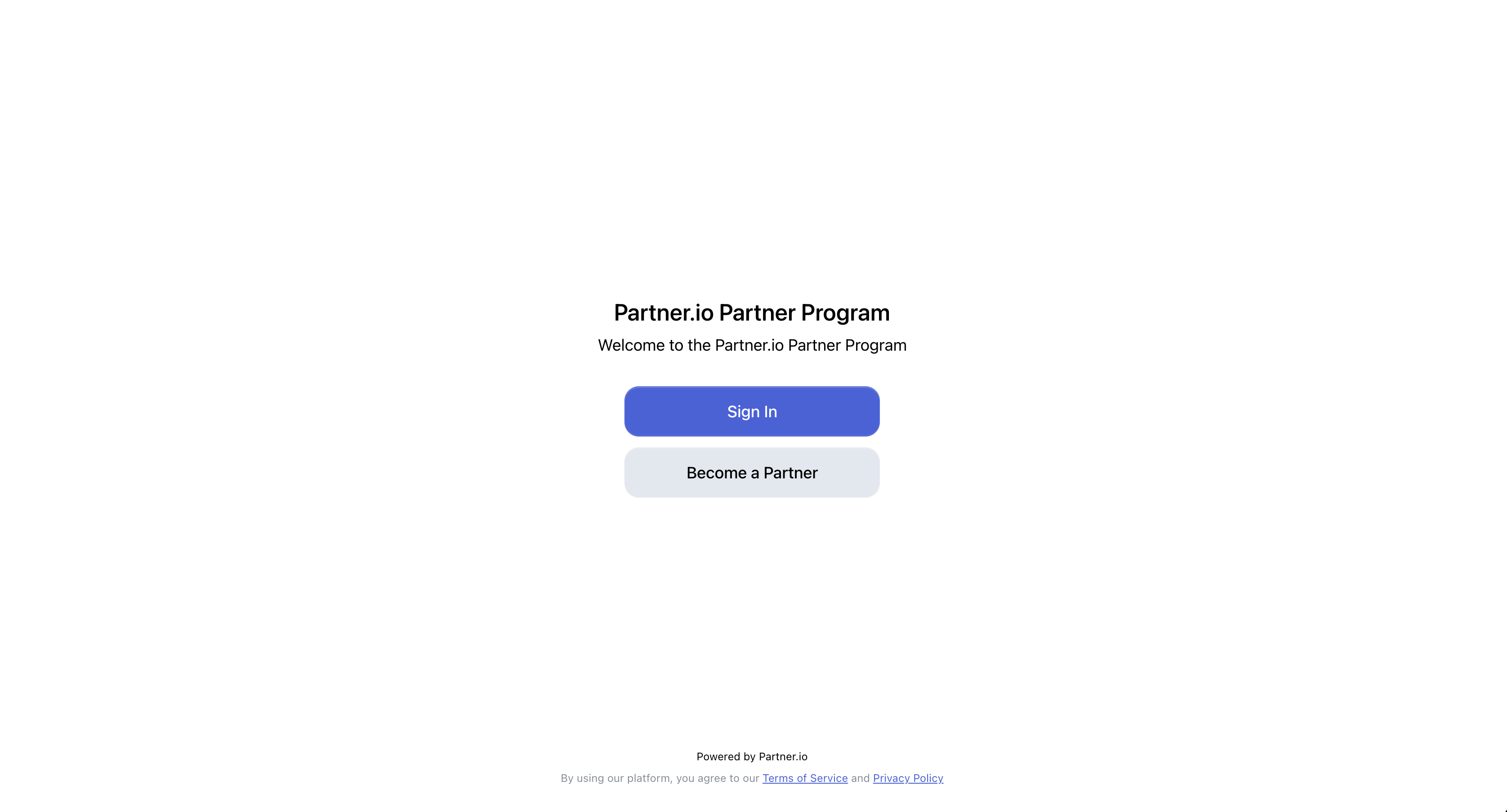
Partner Agreements
When your organization has partner agreements enabled, you'll need to digitally sign legal agreements before accessing the partner portal.
What to Expect
Required Step: You cannot proceed without signing if agreements are enabled
Digital Signature: Complete the signing process directly in your browser
Immediate Access: Once signed, you'll gain portal access
⚠️ NOTE: Agreements can be enabled at any time by the organization.
First Login & Dashboard Overview
After signing any required agreements, you'll land on your personalized dashboard containing key performance metrics and lead management tools.
The dashboard provides three main tabs:
Overview: Performance metrics and lead management
Tracking Links: Your unique referral URLs
Rewards: Partnership tier and available benefits
This is where you'll spend time monitoring performance, accessing links, and creating new leads.
A more detailed break down can be found in the core features section.
Top Navigation

The main navigation bar provides access to all portal sections:
Dashboard - Your home base for metrics and quick actions
Leads - Lead management and tracking
Payments - Commission tracking and invoices (invoices for admins users)
Training - Courses and certifications
Partner Room - Shared resources and documents
Manage - Team settings and profile management (admins users)
Account Settings & Quick Actions

The top-right nav provides:
For All Users:
Create Lead quick action - Add a lead shortcut
Notifications - View notifications page
Account Settings - Personal profile management
Sign Out - Log out of the portal
For Admin Users:
Invite User quick action - Add team members to your partner account
Organization Settings - Company-wide configurations
Payout Settings - Payment method and bank details
Dashboard
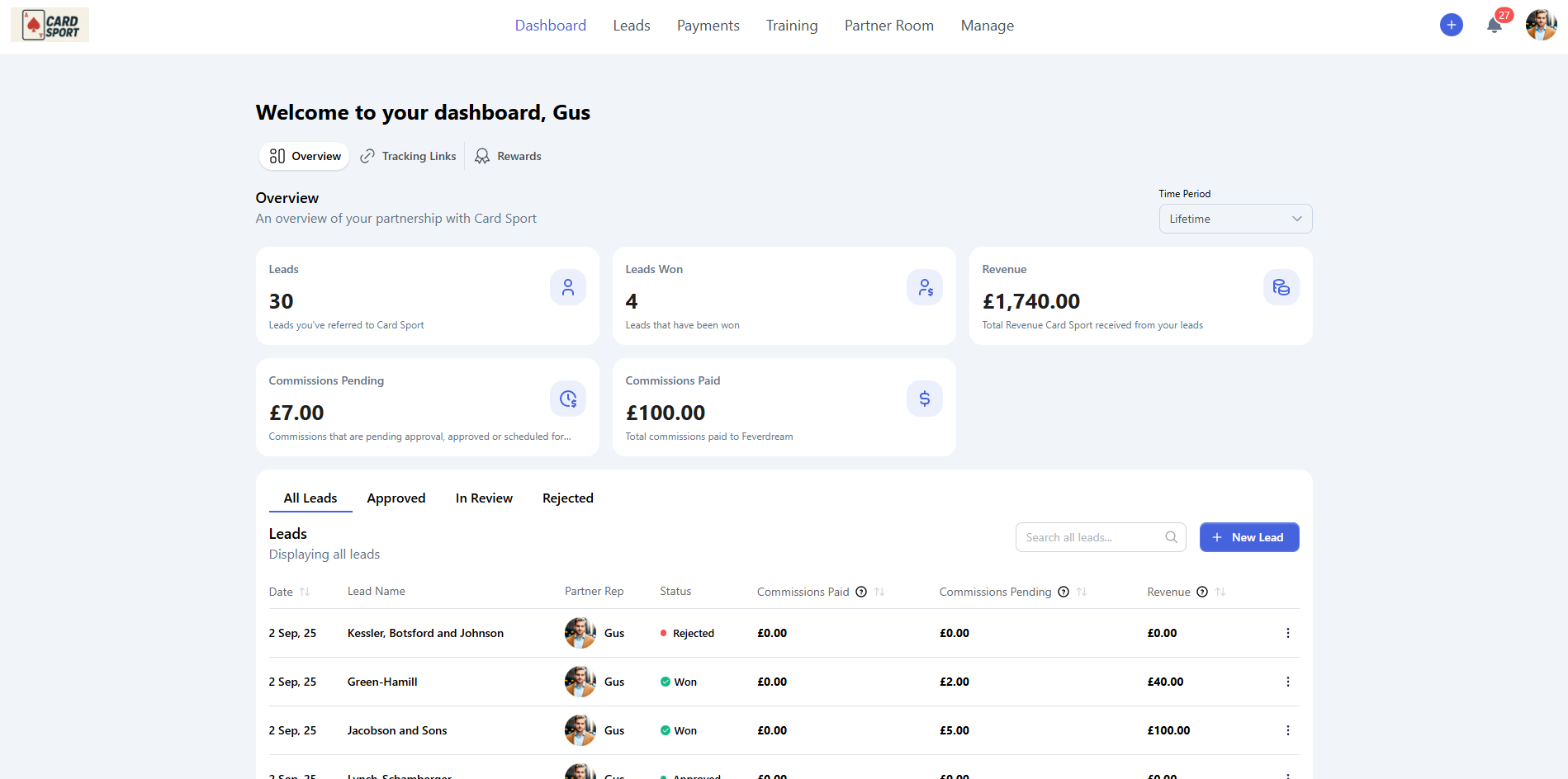
Your dashboard serves as the control center, providing real-time insights into your partnership performance across three key areas.
Overview
The Overview tab displays your partnership performance at a glance:
Key Metrics:
Leads - Total leads you've referred
Leads Won - Leads that converted to customers
Revenue - Total revenue generated from your referrals
Commissions Pending - Earnings awaiting approval
Commissions Paid - Total earnings received
Lead Management:
View all leads with status filtering (All, Approved, In Review, Rejected)
Search and filter your lead pipeline
Create new leads with the "New Lead" button
Quick access to lead details and management
Time Period Control: Use the dropdown in the top-right to analyse performance across different timeframes (Lifetime, Last Month, etc.).
Tracking Links
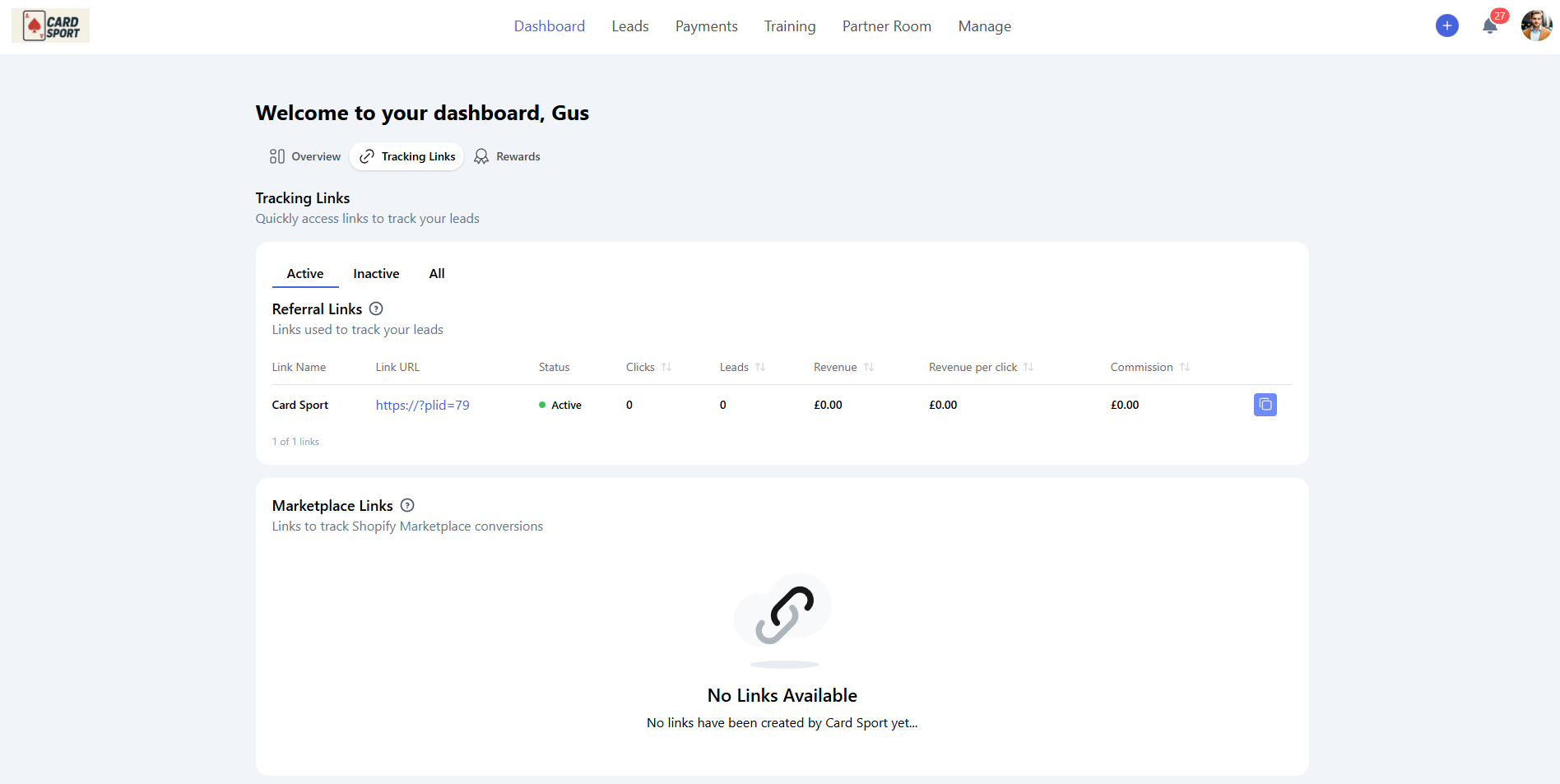
Your tracking links are the foundation of successful referral marketing. This tab shows:
Referral Links:
Link Name - Descriptive names for campaign tracking
Link URL - Your unique referral URLs
Status - Active or Inactive link status
Performance Metrics - Clicks, leads, revenue, and commission data
Marketplace Links: Special links for tracking Shopify marketplace conversions (when applicable).
How Referral Links Work: Referral Links make it easy to turn sign-ups on your organization's website into leads in Partner.io.
How To Use Them: As a partner representative, you'll be given unique referral links. Share these links to attract potential customers. When someone visits the website through one of your links and signs up, they'll a
automatically be added to Partner.io as a lead will be credited to you.
Link Status:
Active 🟢 - Link is active and can be used to generate leads
Inactive 🔴 - Link has been deactivated and can no longer be used
Rewards
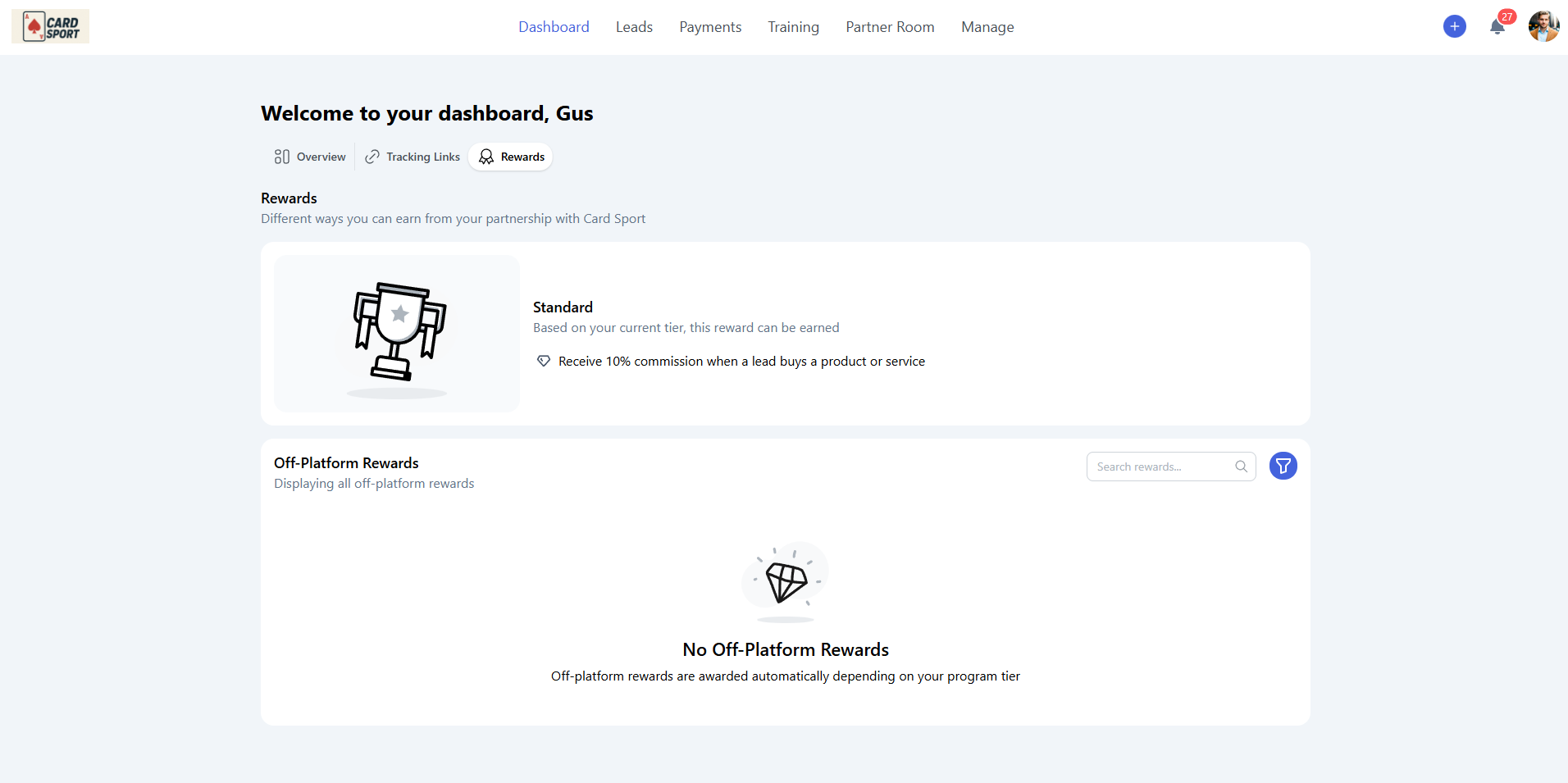
The Rewards tab shows your partnership tier and available benefits:
Current Tier Display:
Your current partnership level (Standard, Premium, etc.)
Commission percentage and benefits
Off-Platform Rewards: Additional benefits and perks awarded based on your program tier.
Leads
The Leads section provides comprehensive lead management across two main categories.
Your Leads
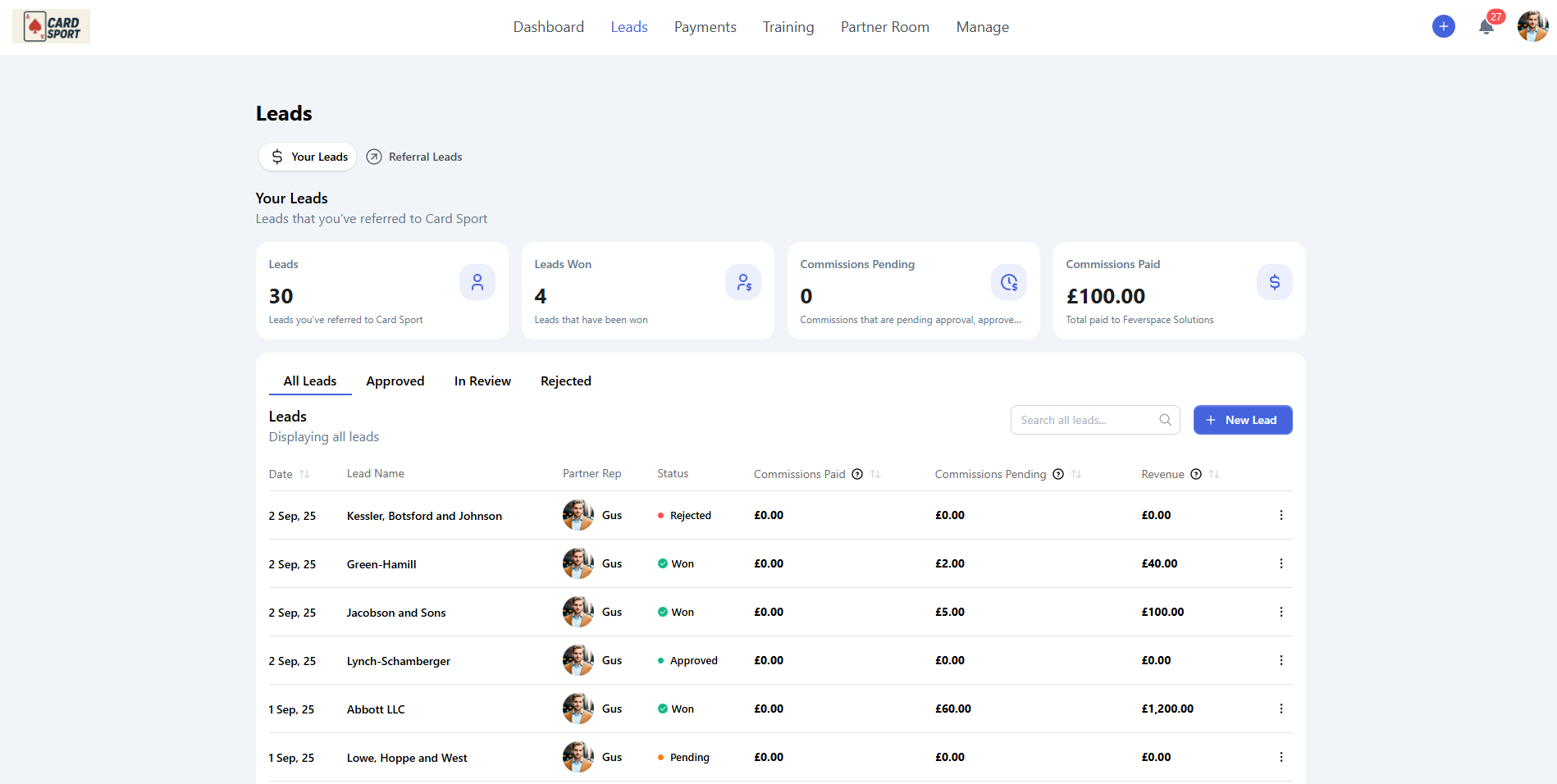
Track and manage leads you've referred:
Performance Overview:
Leads - Total leads you've referred
Leads Won - Successfully converted leads
Commissions Pending - Awaiting approval or payment
Commissions Paid - Total earnings received
Lead Management:
Filter leads by status (All, Approved, In Review, Rejected)
Search through your lead database
Create new leads with New Lead button
View detailed lead information and status updates
Edit or delete leads directly from the list
Referral Leads
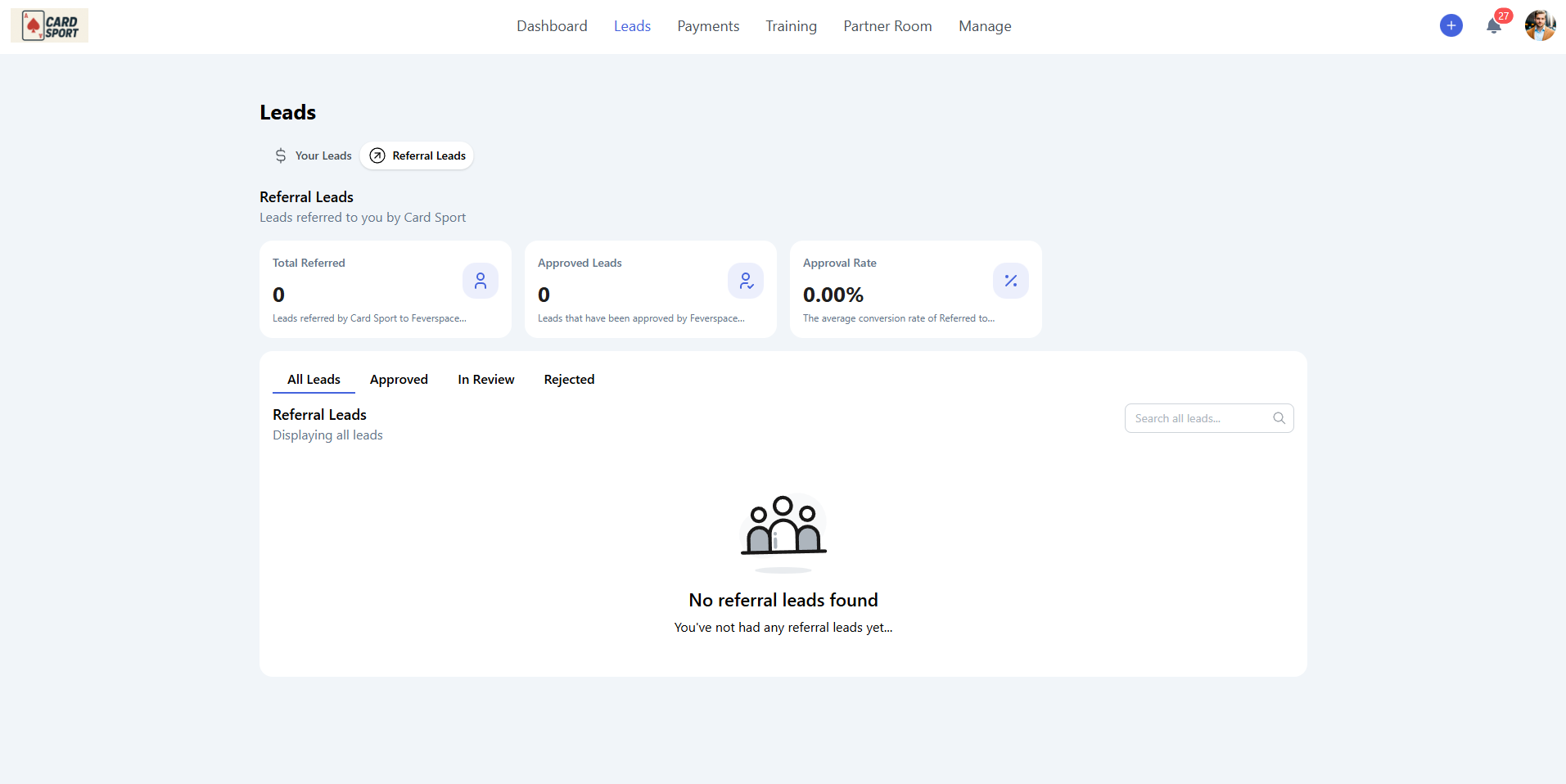
Monitor leads that have been referred to you by your organization:
Key Metrics:
Total Referred - Leads passed to you from the organization
Approved Leads - Successfully accepted referrals
Approval Rate - Percentage of referrals you've successfully converted
This section helps track leads flowing in your direction, separate from your leads.
Payments
The Payments section provides complete financial oversight with three main areas:
Commissions
Track your commission earnings and payment status.
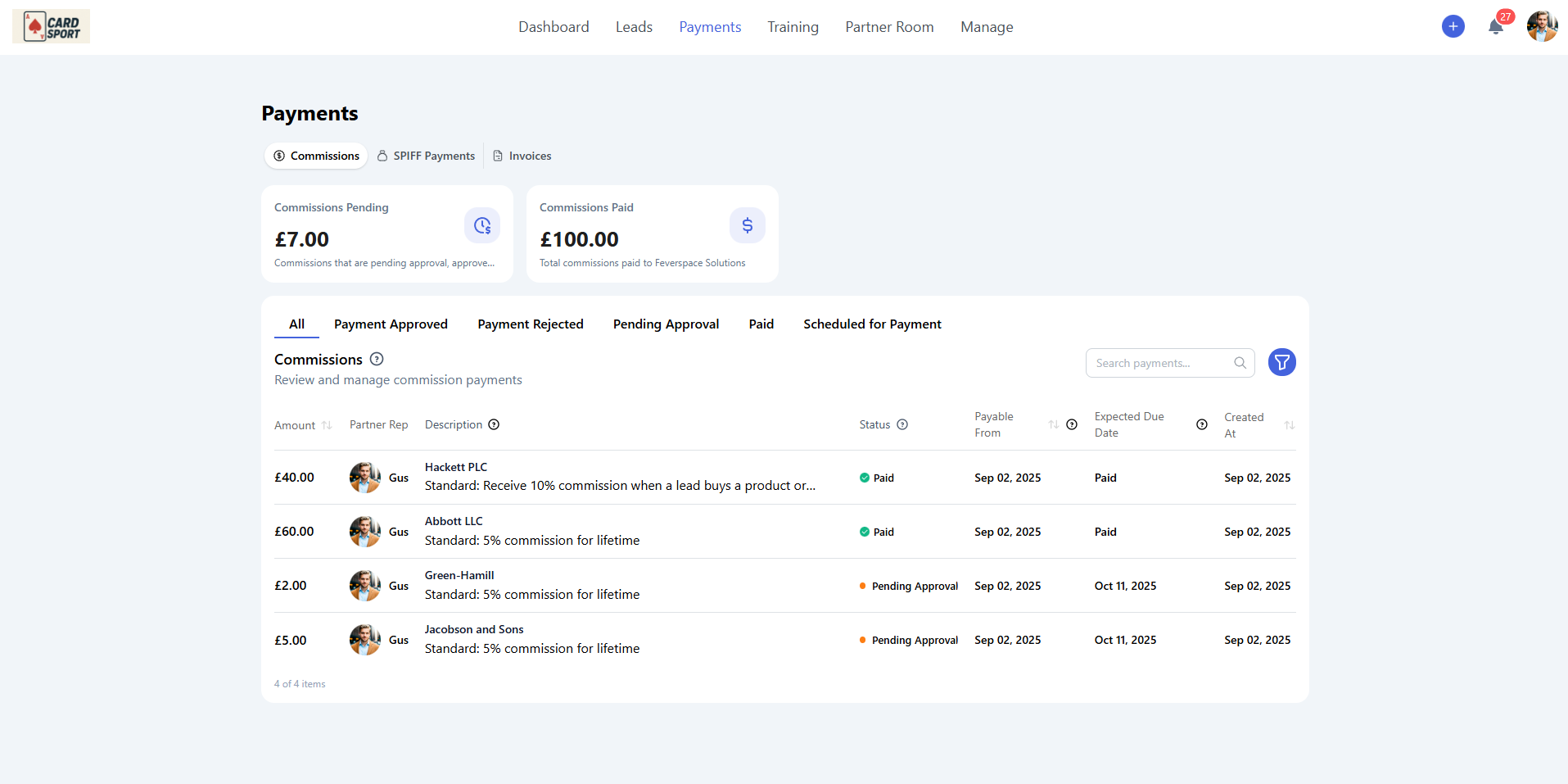
About Commissions: Commission payments are determined by the tier assigned to your partnership, which outlines your percentage share of revenue and how it is triggered within the deal pipeline.
Additional Commission Opportunities: Depending on how your organization has configured their partner program, commissions may also include rewards for completing courses and earning badges. This varies by organization and tier structure.
How Commission Structure Works:
Tier-Based Percentages: Your partnership tier determines your base commission rate
Pipeline Stage Incentives: Some organizations offer additional rewards for moving deals through specific stages
Training Incentives: When enabled by your organization, extra earnings may be available from completing courses and certifications
Achievement Bonuses: Some programs offer commission bonuses for earning official accreditations
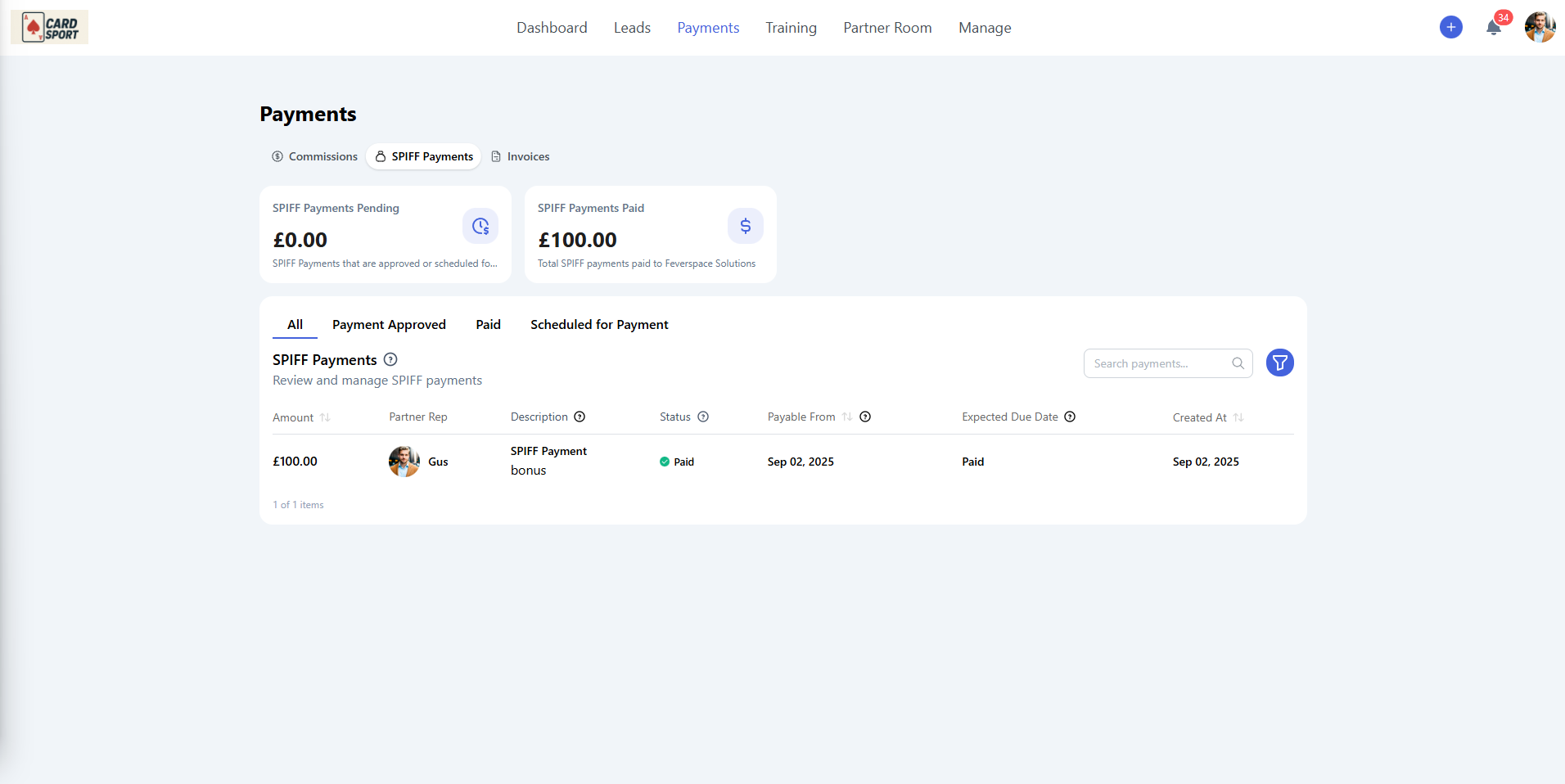
SPIFF Payments
Monitor special incentive payments and bonuses separate from standard commissions.
Invoices
Access and manage all automatically generated invoices for streamlined payment processing.
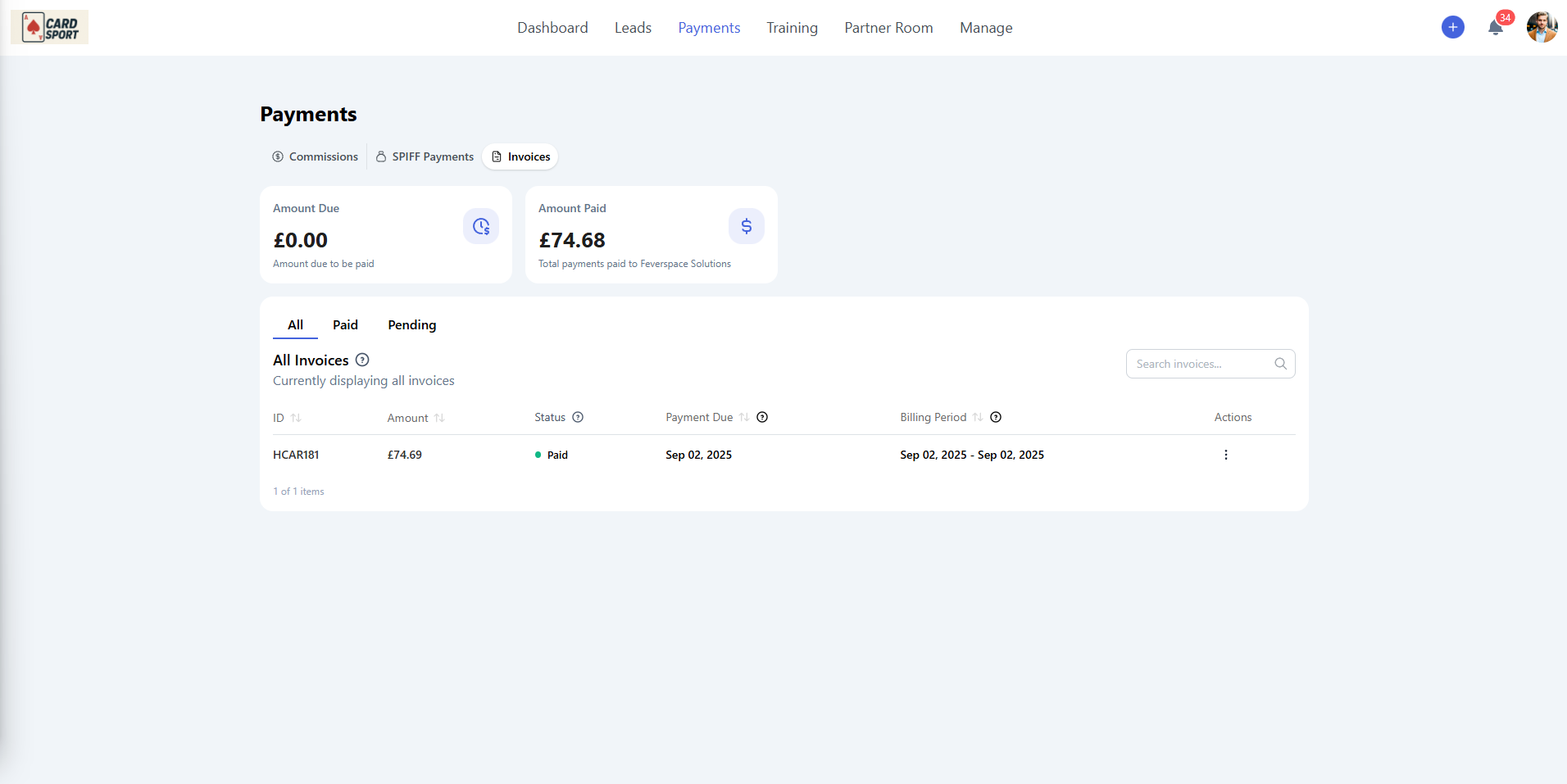
Payment Overview:
Amount Due - Outstanding payments awaiting processing
Amount Paid - Total payments received
Invoice Management:
Filter invoices by status (All, Paid, Pending)
Search through payment history
View detailed invoice information
Track payment processing status
Training
Expand your knowledge and earn certifications through the comprehensive training system.
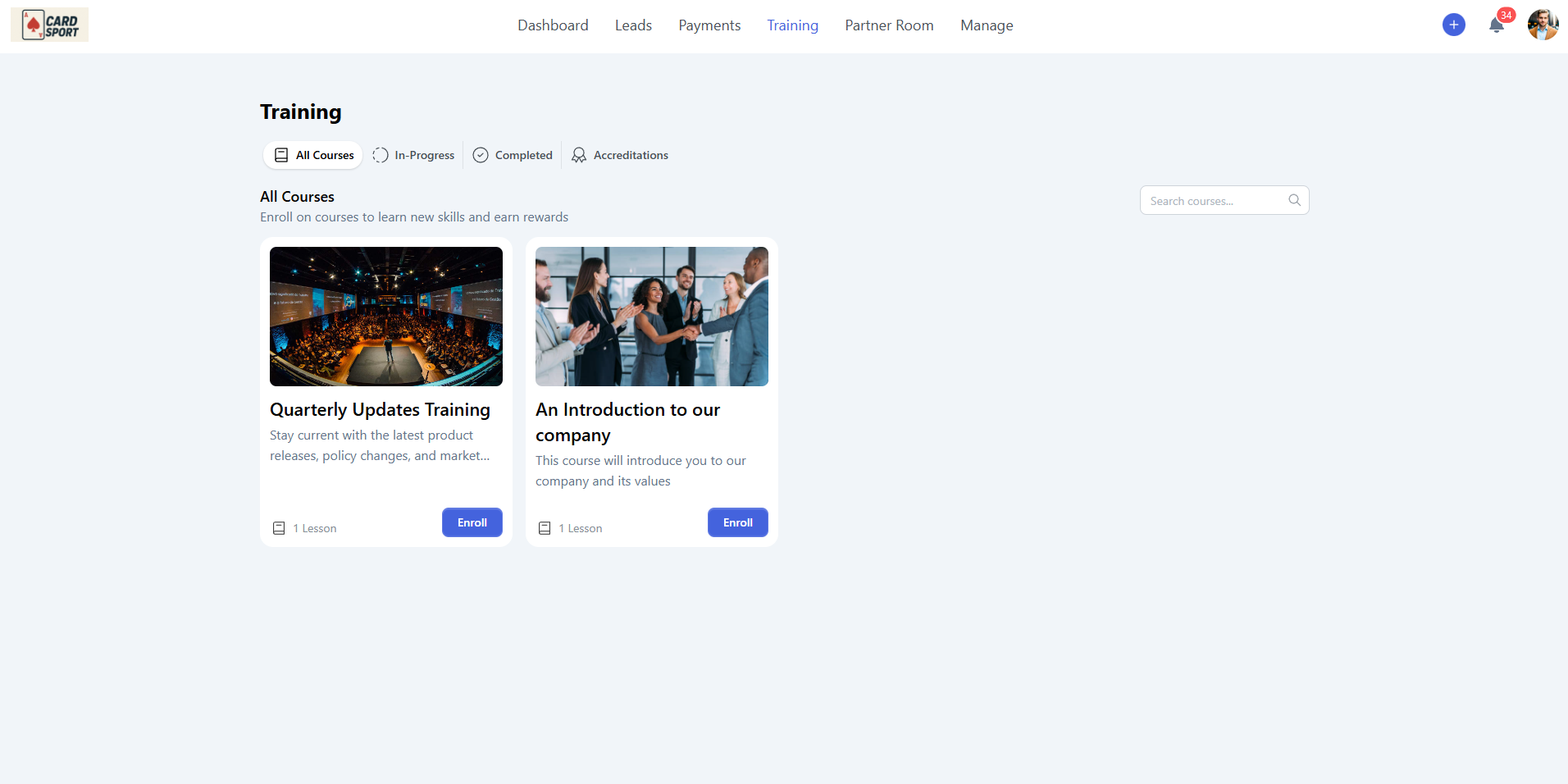
All Courses
Browse the complete catalogue of available training courses. Enroll in courses to further your skills and knowledge and earn potential rewards.
In-Progress
Track courses you've started but haven't yet completed. This helps you manage your ongoing learning commitments and pick up where you left off.
Completed
View your learning achievements and access certificates for courses you've successfully finished.
Accreditations
Display earned badges, certificates, and official accreditations. These serve as proof of your expertise and may unlock additional partnership benefits or higher commission tiers.
Partner Room
Your Partner Room serves as a centralized resource hub where your organization shares important assets and materials.
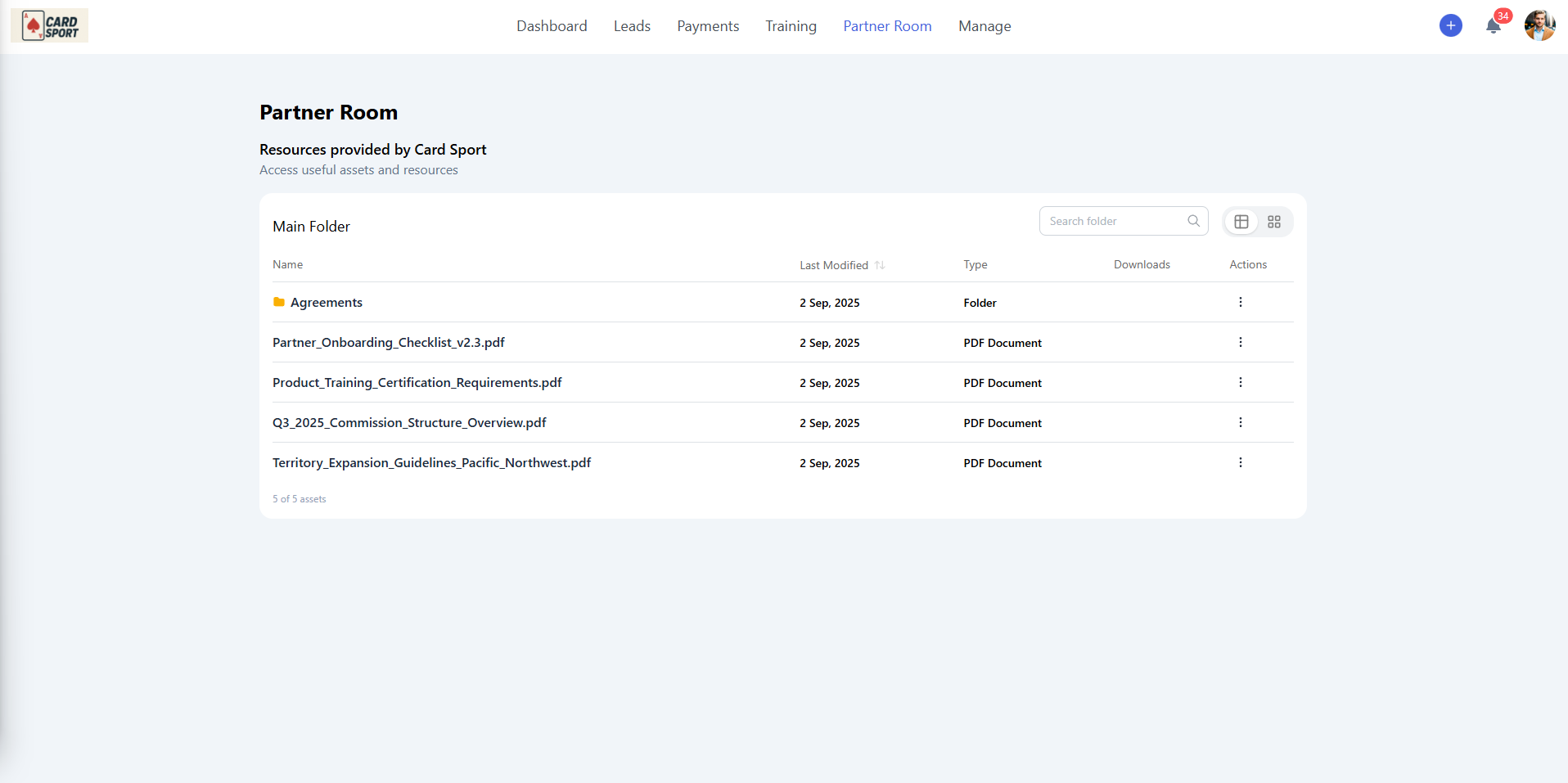
Examples of resources:
Marketing materials and brand assets
Product documentation and guides
Sales enablement resources
Training materials and best practices
Templates and tools for partner success
TIP: Use the search functionality to quickly locate specific materials you need for your partnership activities.
Resource View
Clicking any resource will open it in a detailed view
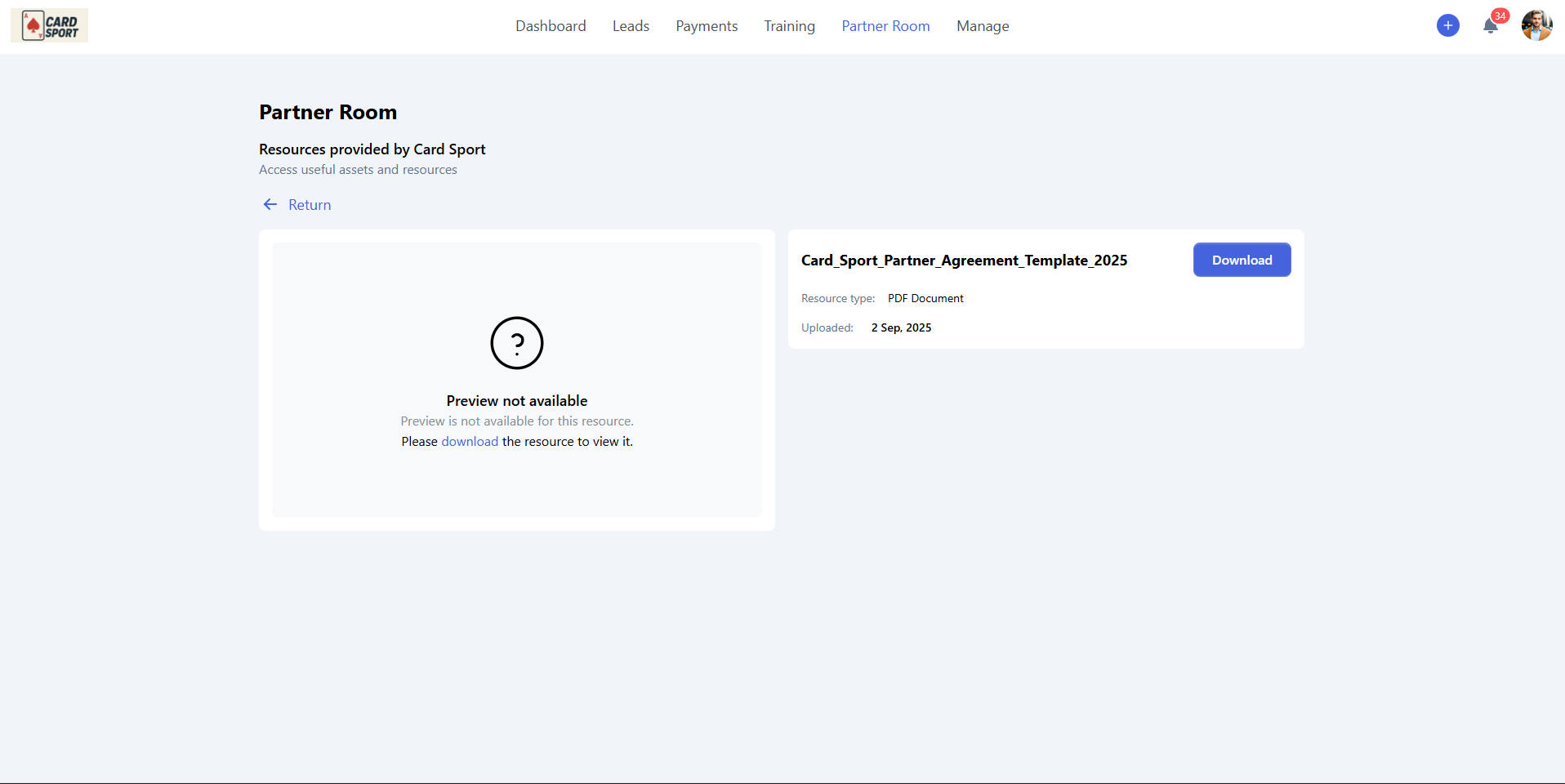
Resource Details:
Preview the content if available
Download files
Manage (Admin users)
The Manage section handles team administration and public profile management.
Team
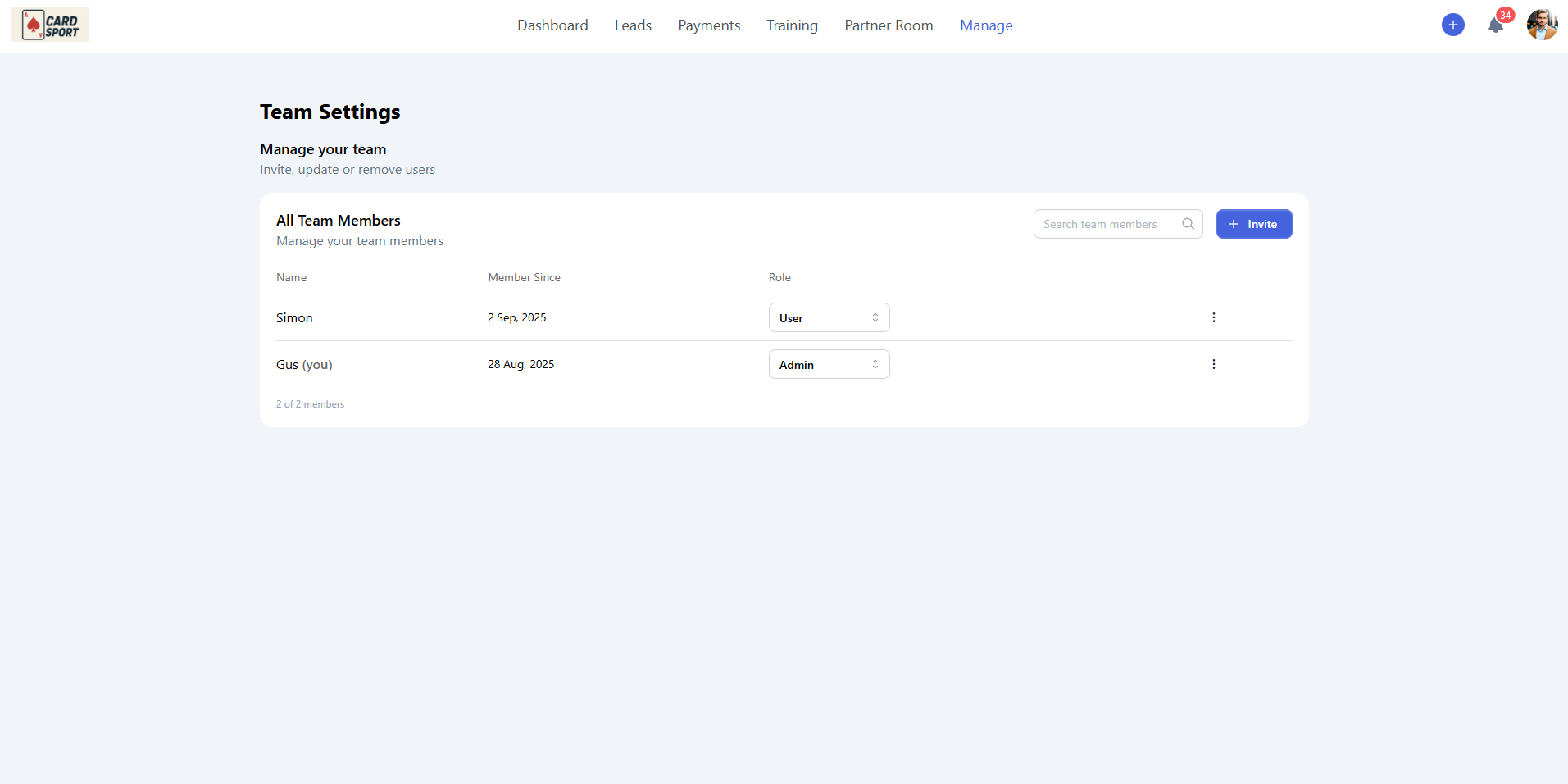
Team Management:
Invite new members - Add team members to your partner account
Manage roles - Assign Admin or standard user permissions
View member details - See join dates and current permissions
Update information - Edit user details and permissions
Role Types:
Admin - Full access to all features including payments and organization settings
User - Standard access to leads, training, and basic partnership functions
Spotlight
Create and manage your public profile for your organization's partner directory.
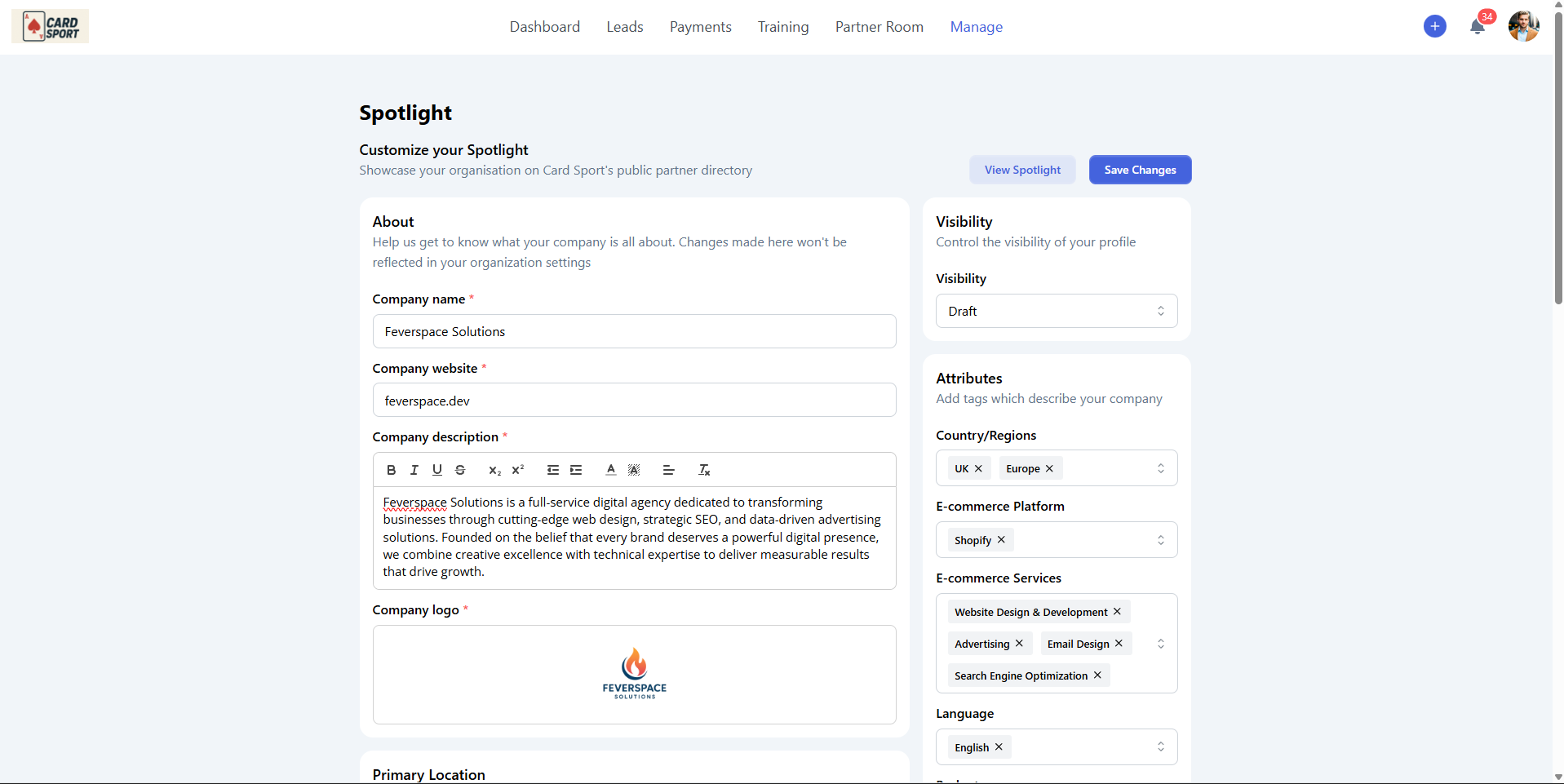
Profile Elements:
Company Information - Name, website, and detailed description
Company Logo - Visual branding for directory listing
Visibility Control - Draft or Published status
Attributes - Tags describing your specialties and focus areas
Geographic Focus - Countries and regions you serve
Platform Expertise - E-commerce platforms and services you specialize in
Budget Range - Client budget ranges you typically work with
This profile helps potential customers find and connect with partners who match their specific needs and requirements.