

Account mapping compares your account list with the lists your partners share, then shows which accounts you both work — and where each one sits in your two sales cycles. Overlapping accounts are the starting point for warm introductions and co-selling.
What account mapping is
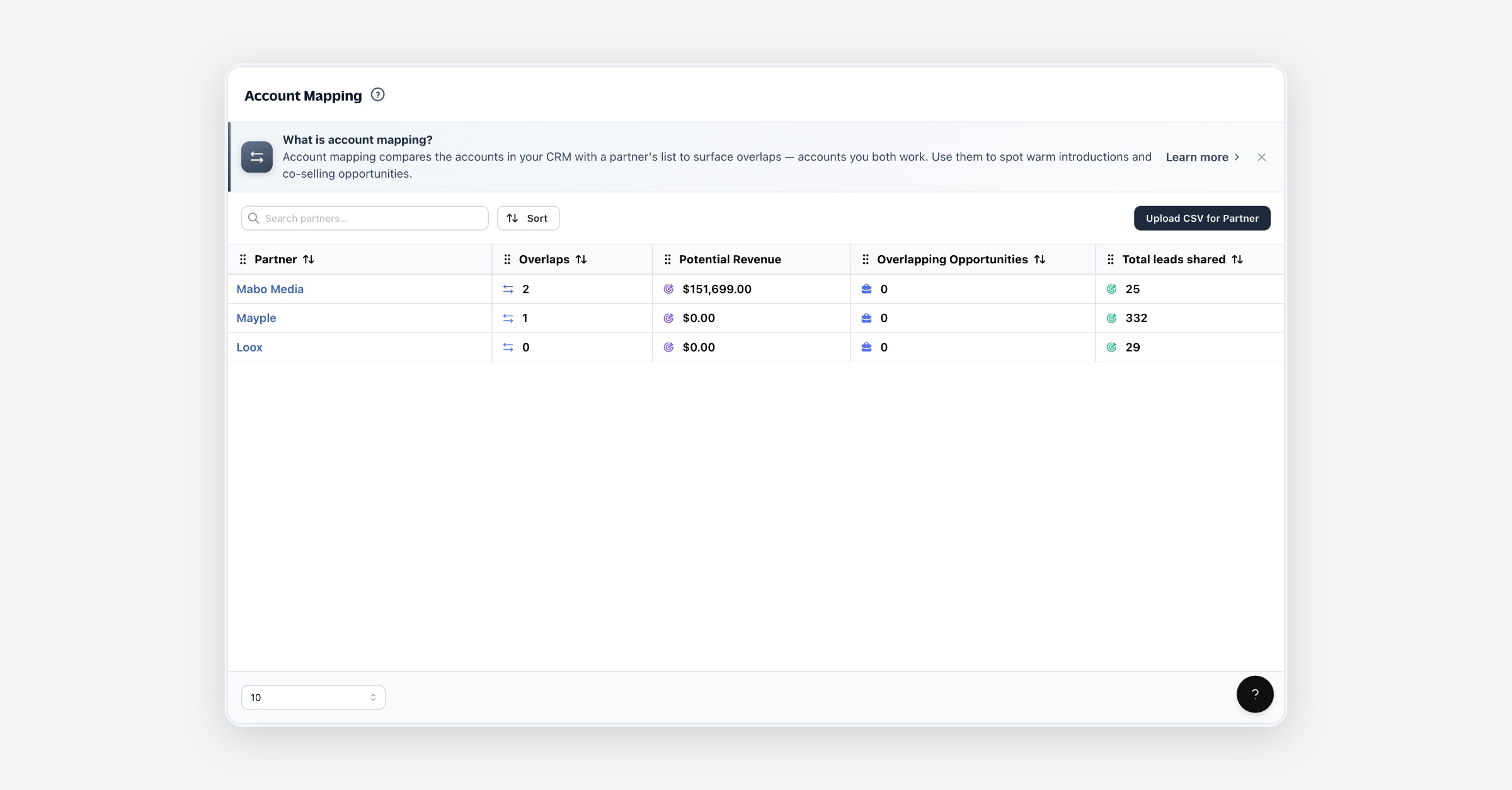
Every partnership has hidden common ground: prospects you're chasing that a partner already sells to, customers of yours who are a partner's prospects, accounts you've lost that a partner is winning. Account mapping surfaces that overlap automatically. It reads your accounts — from a connected CRM or an uploaded list — matches them against a partner's list, and lays the matches out in a matrix so you can act on them.
For each partner you get:
Overlaps — how many accounts you both have.
Potential revenue — the value those shared accounts represent.
Overlapping opportunities — accounts that are live deals on one or both sides.
A matrix — a clickable grid crossing your accounts with the partner's, so you can find, for example, your prospects that are already a partner's customers.
Getting started
You need accounts on your side to match against your partners' lists. There are two ways to add them:
Connect a CRM. Account mapping reads your accounts from HubSpot, Salesforce, or Pipedrive. Connect one from Integrations.
Upload your accounts. If you don't use one of those CRMs, upload a CSV of your customers, prospects, or opportunities directly from the Account Mapping page.
Until you've done one of these, the page shows a getting-started screen with both options:
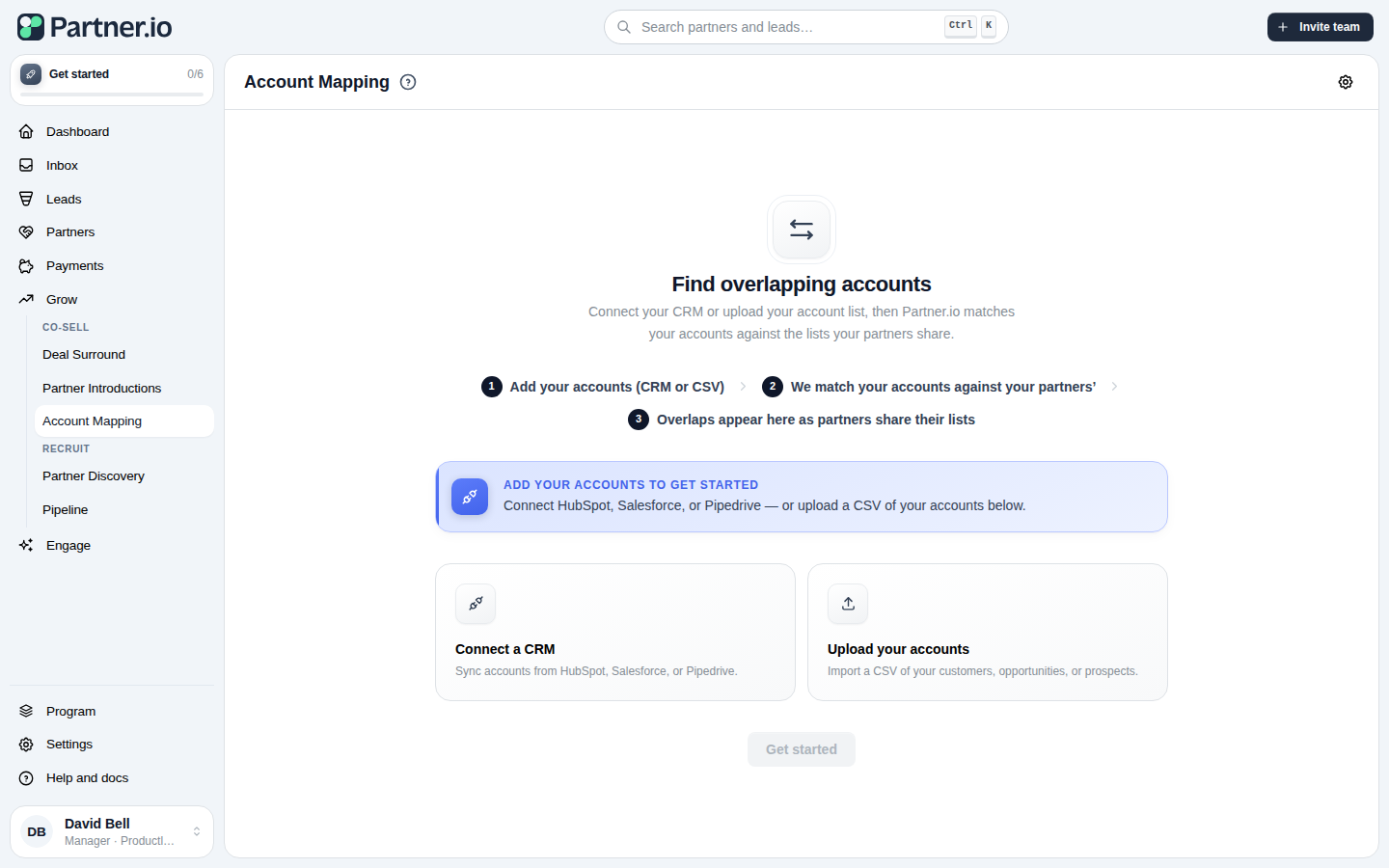
Once either is in place, overlaps appear on their own. As the partners in your program share their account lists, Partner.io matches them against your accounts and surfaces the overlaps here — you don't have to chase anything.
Account mapping is available on plans that include it. If you don't see it in your navigation, it isn't enabled for your account yet.
How accounts get in
Account mapping brings together two sides:
Your accounts — from a CRM or an uploaded list. Connect HubSpot, Salesforce, or Pipedrive and your customers, open opportunities, prospects, and lost deals sync automatically. If you don't use one of those, upload your own list instead — see below.
Partner accounts — uploaded as a list. A partner's accounts come in as a CSV. You can upload a partner's customer, prospect, or opportunity list on their behalf, or a partner rep can upload their own list from the partner portal.
Uploading your own accounts
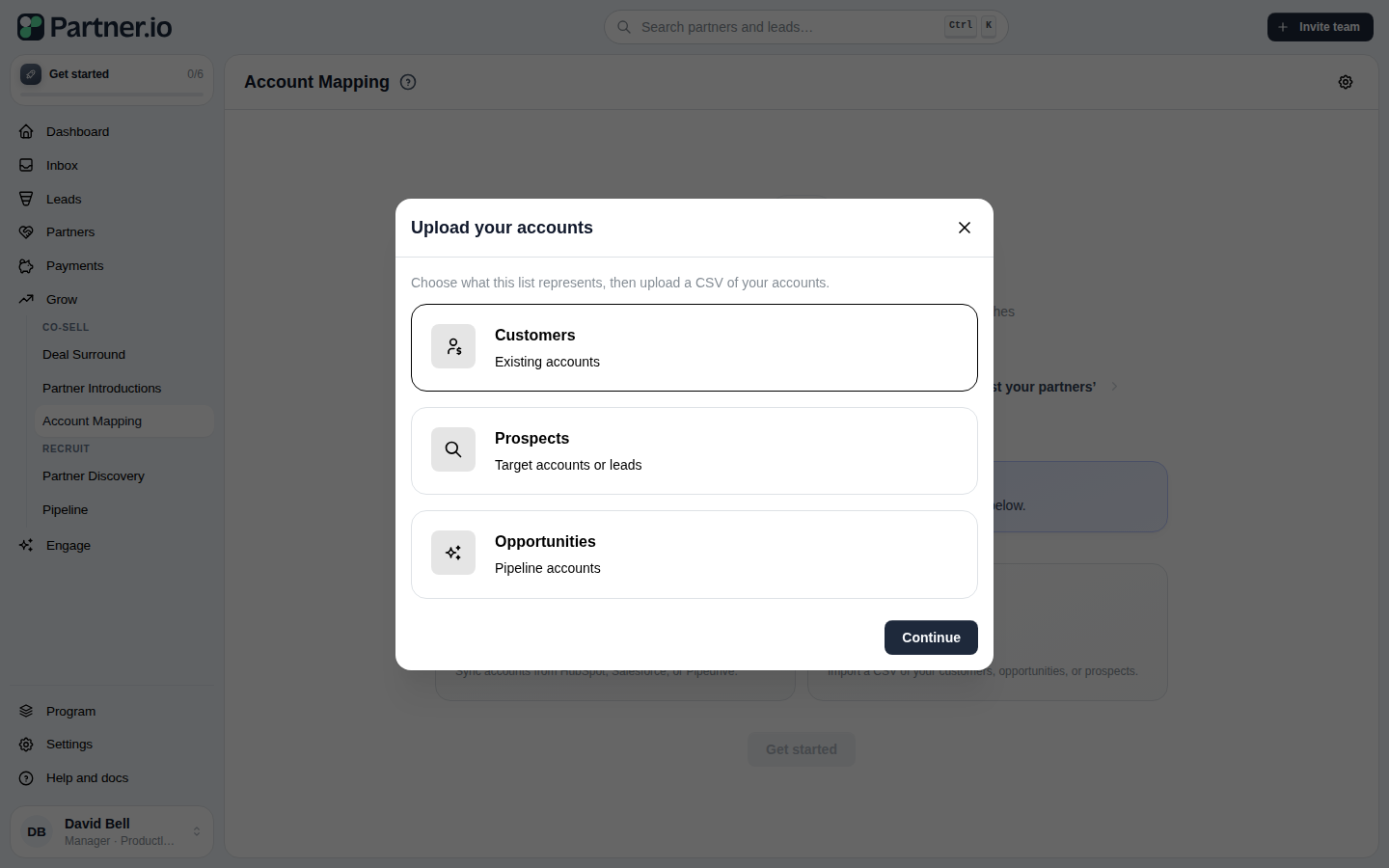
From the Account mapping page, choose Upload your accounts.
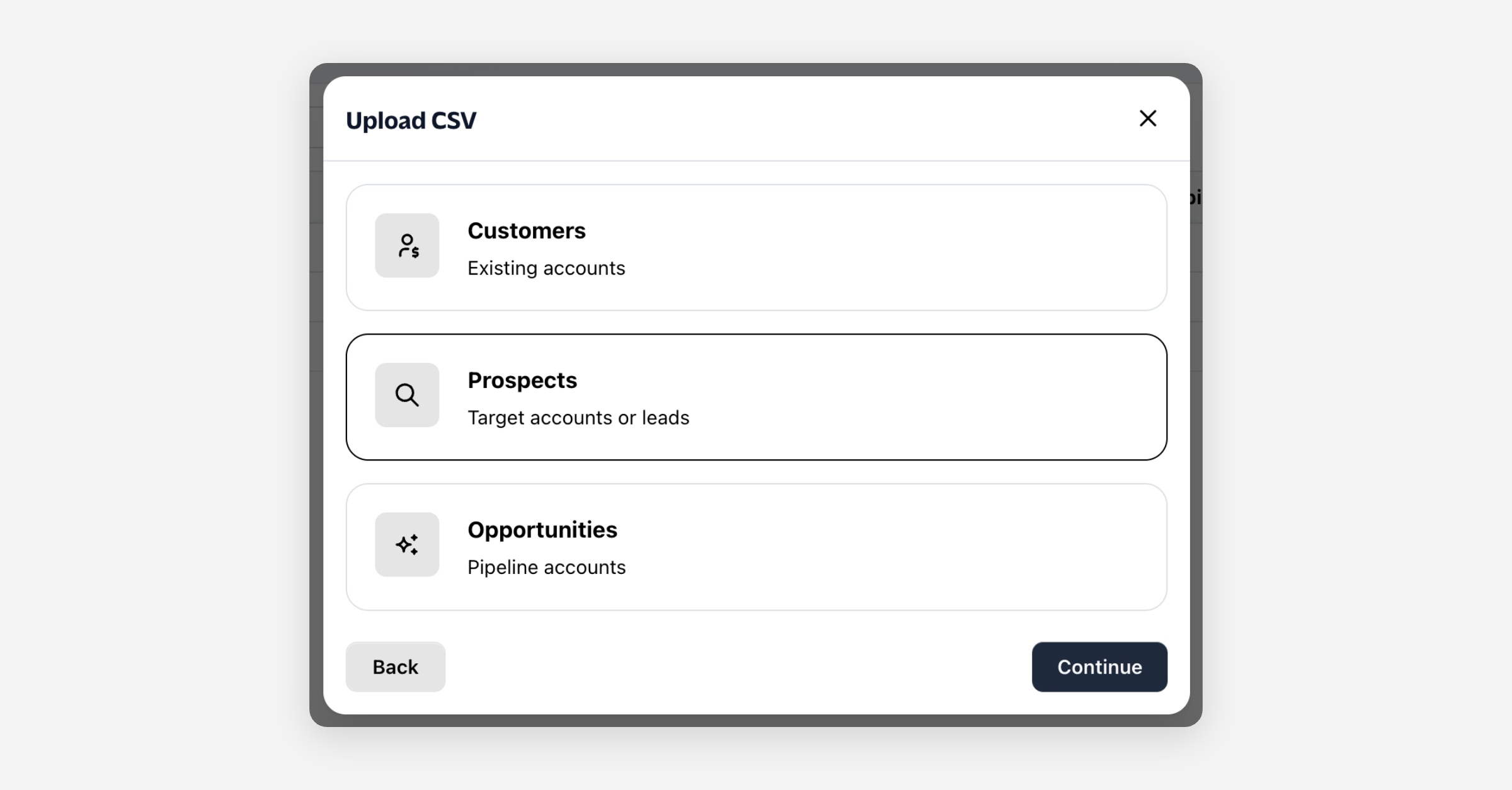
Choose what the list represents — customers, prospects, or opportunities.
Upload the file and map its columns. Account mapping can read a company name and website, a contact name and email, the account owner and their mobile number, and notes; Map Company name and Company website; both are required. Contact details, account owner, mobile number and notes are optional.
Confirm. You'll get an upload confirmation, and if any rows couldn't be read they're skipped and flagged so you can fix and re-upload them.
Each upload is tracked. Once you've uploaded at least one list, a history icon appears next to account mapping settings where you can see past uploads and remove one if you need to re-upload it.
Choosing your source
If you have both a connected CRM and an uploaded account list, only one of them drives your side of the matrix at a time, so the same account isn't counted twice. Pick which one from account mapping settings — the gear icon beside the page header:
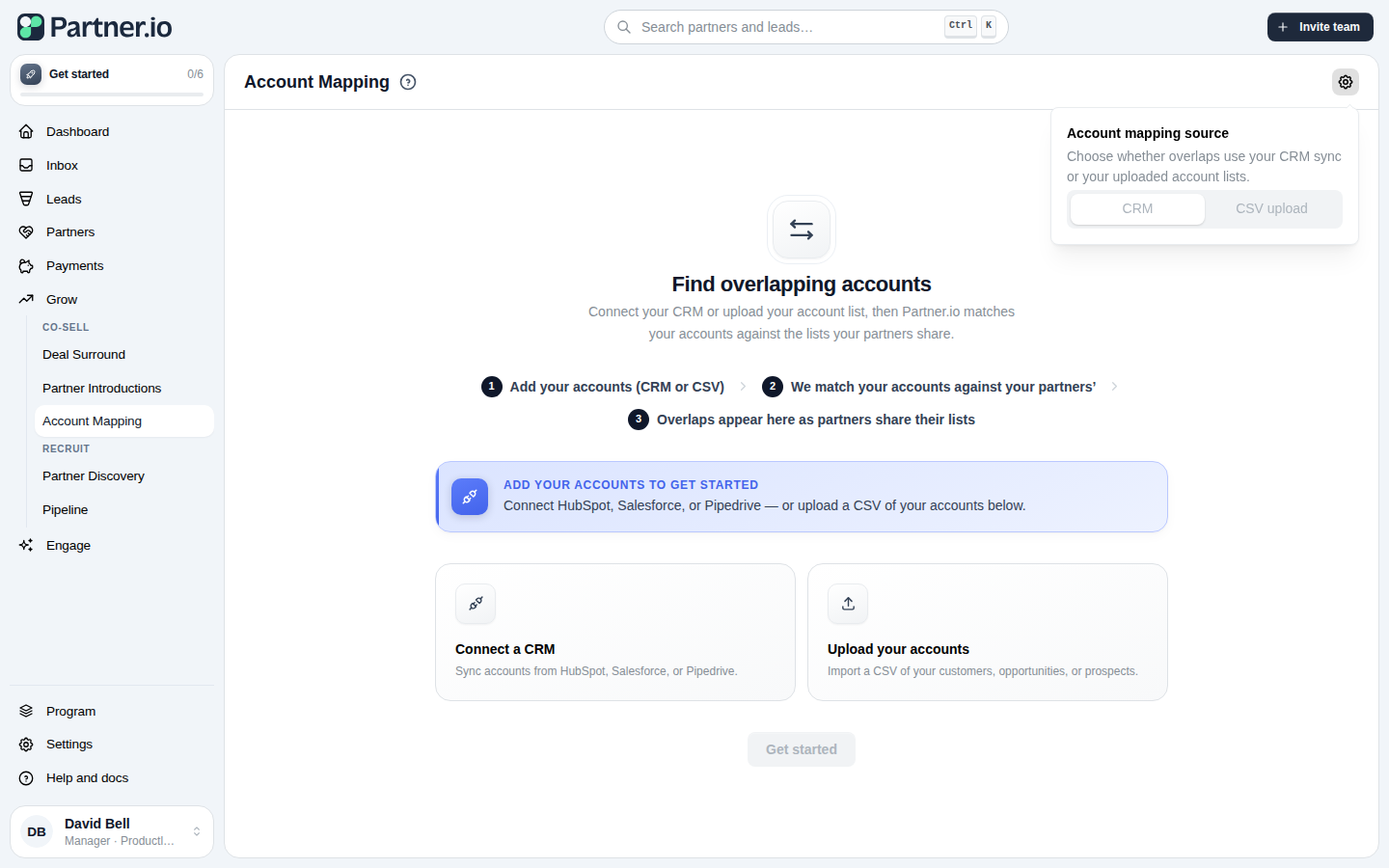
CRM is selectable once a supported CRM is connected, and CSV upload is selectable once you've uploaded at least one account list. Switching updates your overlaps right away.
Uploading a partner's list
From the Account mapping page, choose Upload CSV for Partner.
Pick the partner the list belongs to.
Choose what the list represents — customers, prospects, or opportunities.
Upload the file and map its columns. Account mapping can read a company name and website, a contact name and email, the account owner and their mobile number, and notes; map the columns your file has and leave the rest.
Confirm. You'll get an upload confirmation, and if any rows couldn't be read they're skipped and flagged so you can fix and re-upload them.
Reading the matrix
Open a partner to see the overlap matrix. It crosses your accounts against the partner's:
Your accounts (rows) | Partner accounts (columns) |
|---|---|
Customers | Customers |
Open opportunities | Open opportunities |
Prospects | Prospects |
Lost deals | |
Fresh — accounts the partner has that you don't |
Each cell holds the accounts that appear in both that row and that column, along with the potential revenue they represent. A cell where your prospects meet the partner's customers, for instance, is a list of warm introductions waiting to happen.
Working an overlap
Open a cell to see the overlapping accounts, each with its owner, revenue, and notes.
Drill into an account to see its contacts.
Create a lead from a fresh overlap — an account a partner has that you don't yet. Turning it into a lead records the referral so the partner earns commission when it closes; the lead then lives alongside your other leads.
Sharing and privacy
How much of a partner's list you can see depends on how much that partner chooses to share — ranging from just the accounts you already have in common up to their full list. When you upload a partner's list yourself, you already hold the data, so its full detail is available to you.
FAQ
Do I have to upload my own accounts? No, not if you connect a supported CRM — your accounts then sync automatically. If you don't use HubSpot, Salesforce, or Pipedrive, you can upload your own account list as a CSV instead. Either way, you separately upload your partners' lists.
Why does the page ask me to add accounts? Account mapping compares your accounts with a partner's list, so it needs accounts on your side to match against. Connect HubSpot, Salesforce, or Pipedrive, or upload a CSV of your own accounts if you don't use one of those CRMs.
I have both a CRM and an uploaded list — which one is used? Only one at a time. Choose CRM or CSV upload from account mapping settings (the gear icon by the page header); switching takes effect immediately.
What file formats can I upload? A CSV file (.csv). Rows that can't be read are skipped and flagged so you can fix and re-upload them.
What is a "fresh" overlap? An account a partner has that you don't have yet — a prospect the partnership can open for you. A fresh overlap can be turned into a lead.
Where do leads created from overlaps go? Into your Leads, where you track their status and the commission owed to the referring partner.
Can partners map accounts with me? Yes. A partner rep can upload their own list from the partner portal and choose how much of it you can see.