

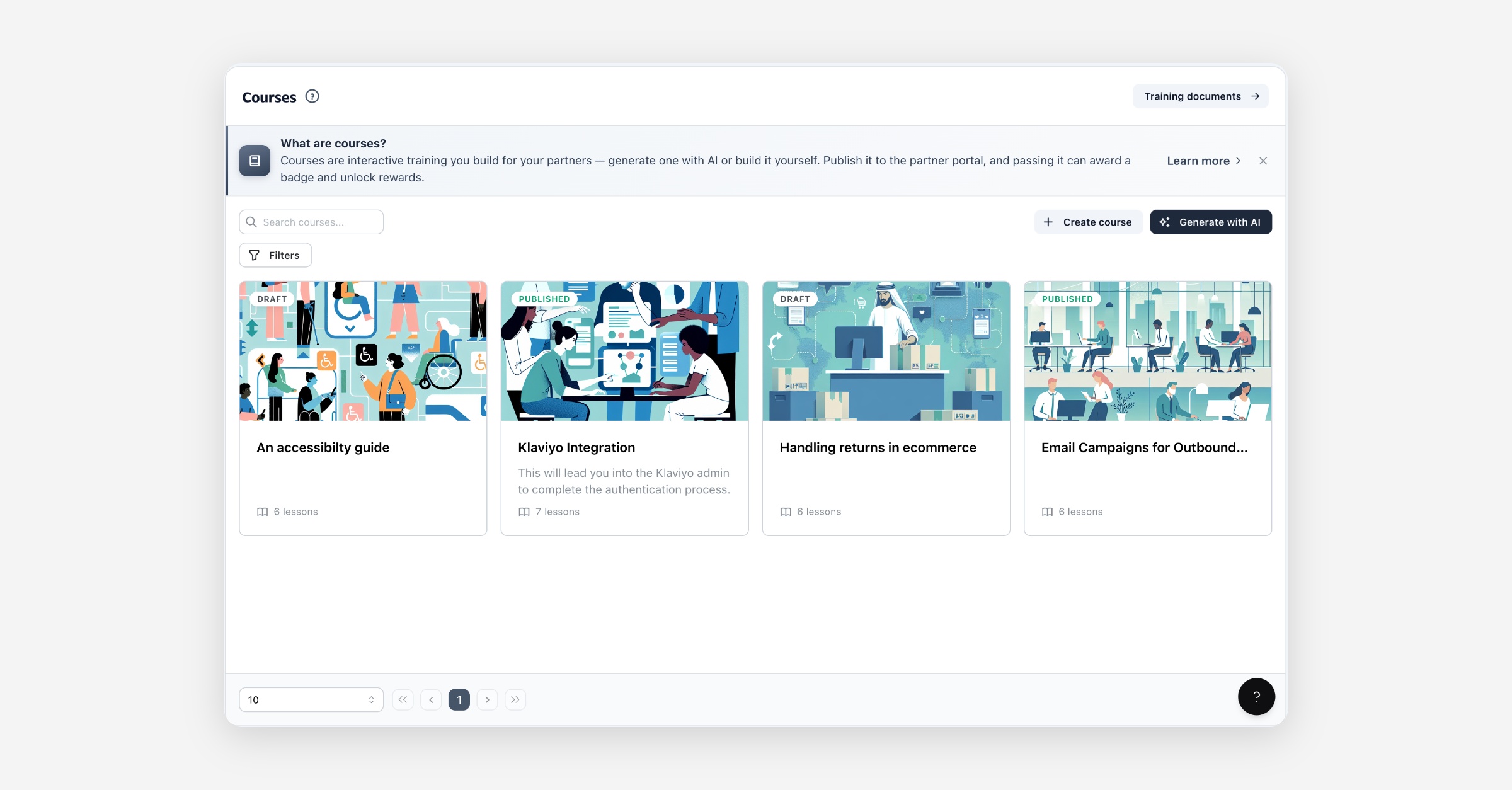
Courses are interactive training you build for your partners — bite-size, mobile-style lessons they complete in the partner portal. Use them to onboard new partners, teach your product, and keep your program aligned on how to sell and position you. Passing a course awards a badge and can unlock further rewards.
Before you start
Courses live under Engagement Hub → Courses. If you don't see it, your plan may not include partner training — contact your account team.
Courses are delivered to partners through the portal. You can build courses before you've added partners, but they'll only reach learners once partners are invited and the course is published.
Training Documents (reachable from the Training documents link on the Courses page) are a companion library of source files you can feed into AI course generation.
Creating a course
You can create a course two ways.
Generate with AI
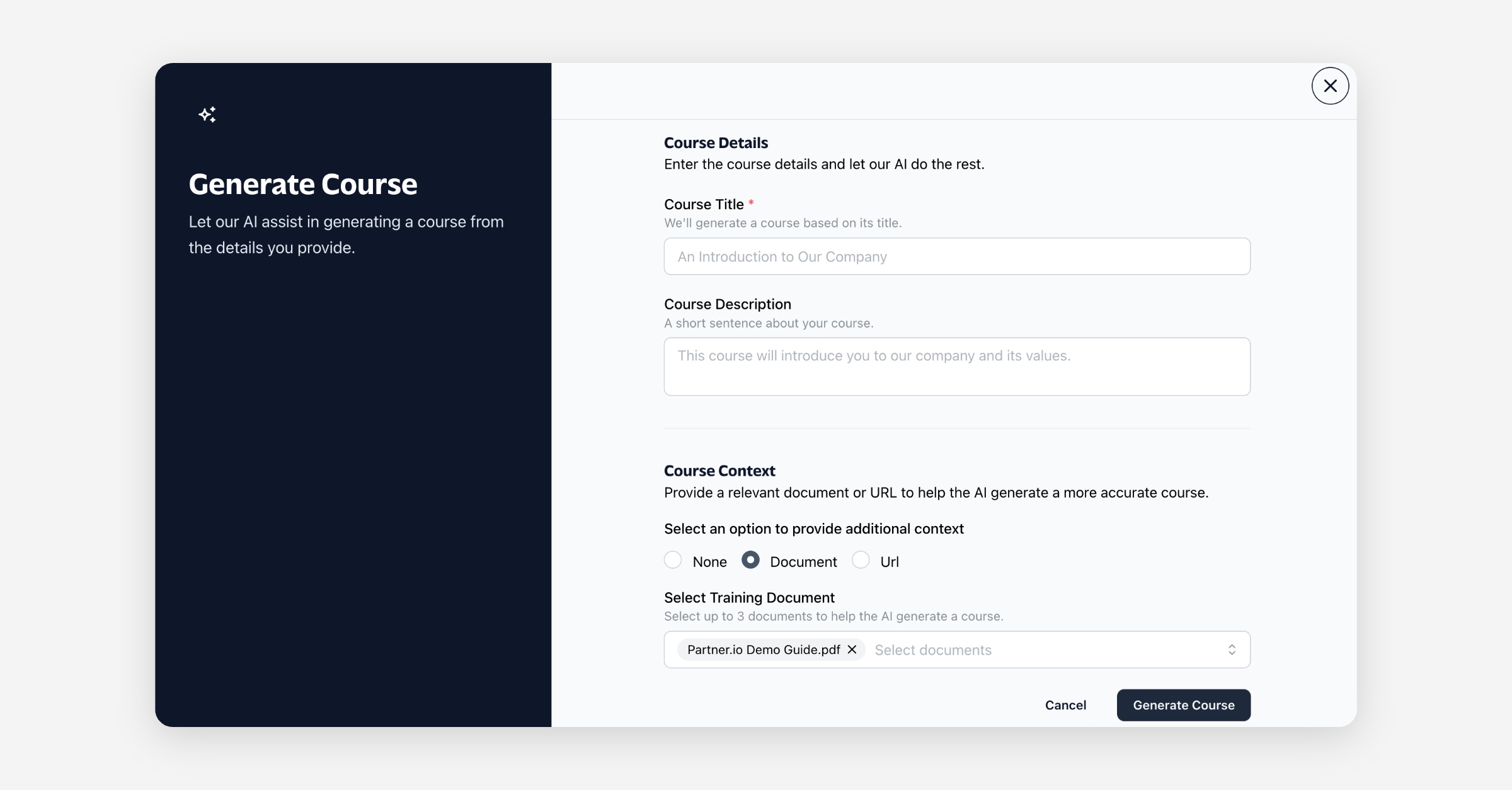
On the Courses page, choose Generate with AI.
Give the course a title — the AI drafts the course around it.
Optionally add context so the result is more accurate:
Document — pick up to three training documents you've uploaded.
URL — point the AI at a page (for example, your product or pricing page).
Choose Generate Course. The course appears in the grid as Generating while it builds, then lands as a Draft for you to review — or Error if generation didn't finish.
Build from scratch
On the Courses page, choose Create course.
Enter a title and an optional description.
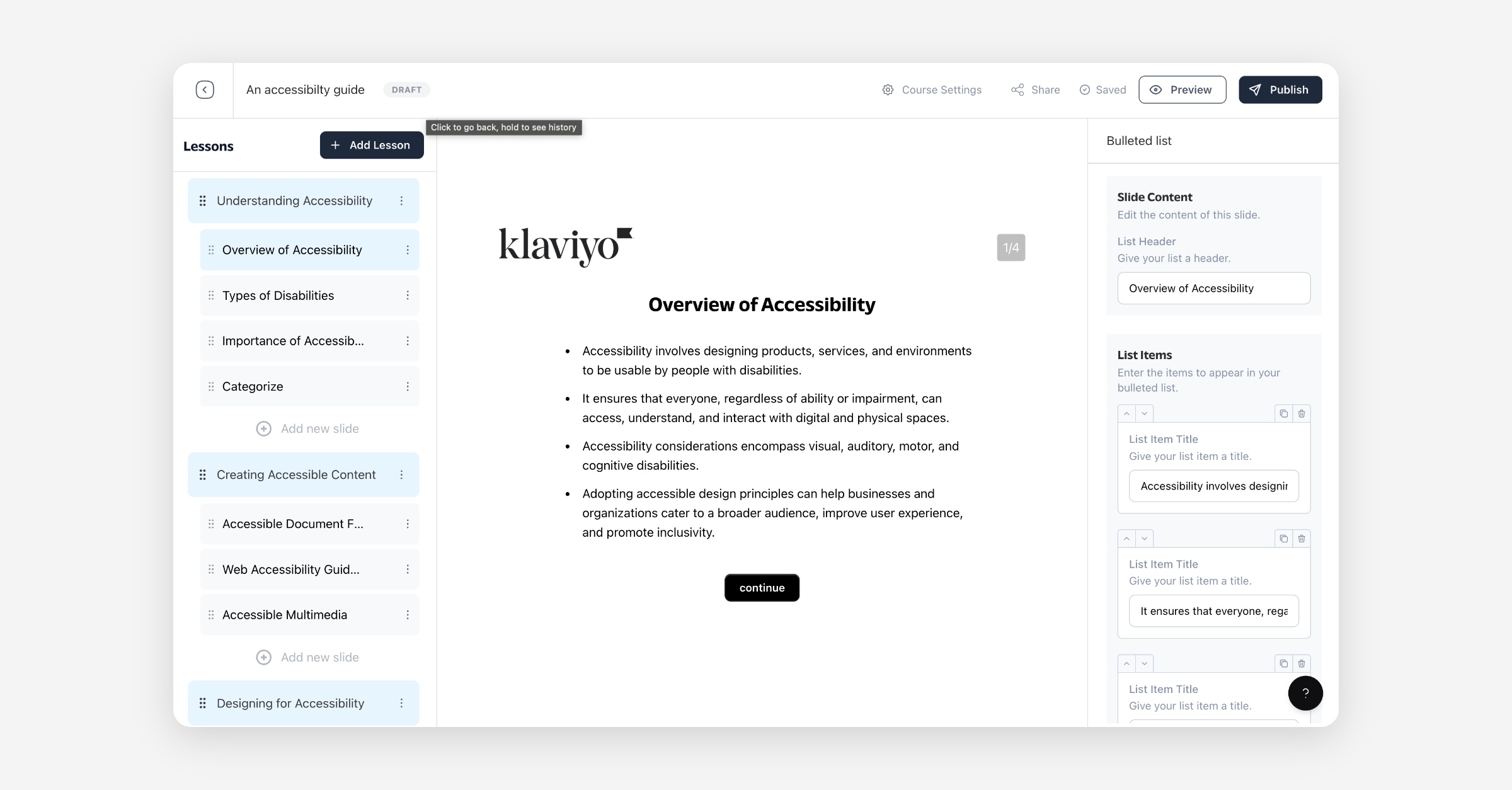
Choose Create Course. You're taken straight into the editor, which starts you with a first lesson to build out.
Lifecycle & statuses
A course moves through these states:
Status | What it means |
|---|---|
Queued | An AI course is waiting to start generating. |
Generating | AI is building the course. Preview and editing unlock once it lands. |
Draft | The course exists but isn't live. Only you and your team can see it. |
Published | The course is live in the partner portal — partners can enroll and complete it. |
Error | AI generation didn't finish. Generate again, or build the course from scratch. |
Publish a Draft to make it live; you can unpublish back to Draft at any time.
Editing a course
Preview and edit become available once a course reaches Draft or Published:
Preview — play the course exactly as a partner would.
Edit — change lessons, slides, theme, pass rate, and settings.
Delete — remove a course. This can't be undone.
Publishing & how partners get access
Publishing is how a course reaches your partners:
When you Publish a course, it appears in the partner portal for all of your partners automatically — there's no per-partner or per-partner-type assignment.
Drafts stay private to your team until you publish.
A partner enrolls to begin a course. Merely browsing it doesn't enroll them — enrollment starts when they open the course to take it, and from that point their progress is tracked.
Completion & scoring
Progress is tracked slide by slide. A course is complete once the partner has finished every slide of every lesson.
Some slides are graded (quiz-style). A course's pass rate is the minimum score — as a percentage of its graded slides — a learner needs to pass.
Set the pass rate in the course editor.
A course with no graded slides is passed by anyone who finishes it.
On finishing, the learner is marked passed or failed based on their score against the pass rate. Either way the completion is recorded; only a pass awards the badge and triggers rewards (below).
Badges, rewards & certification
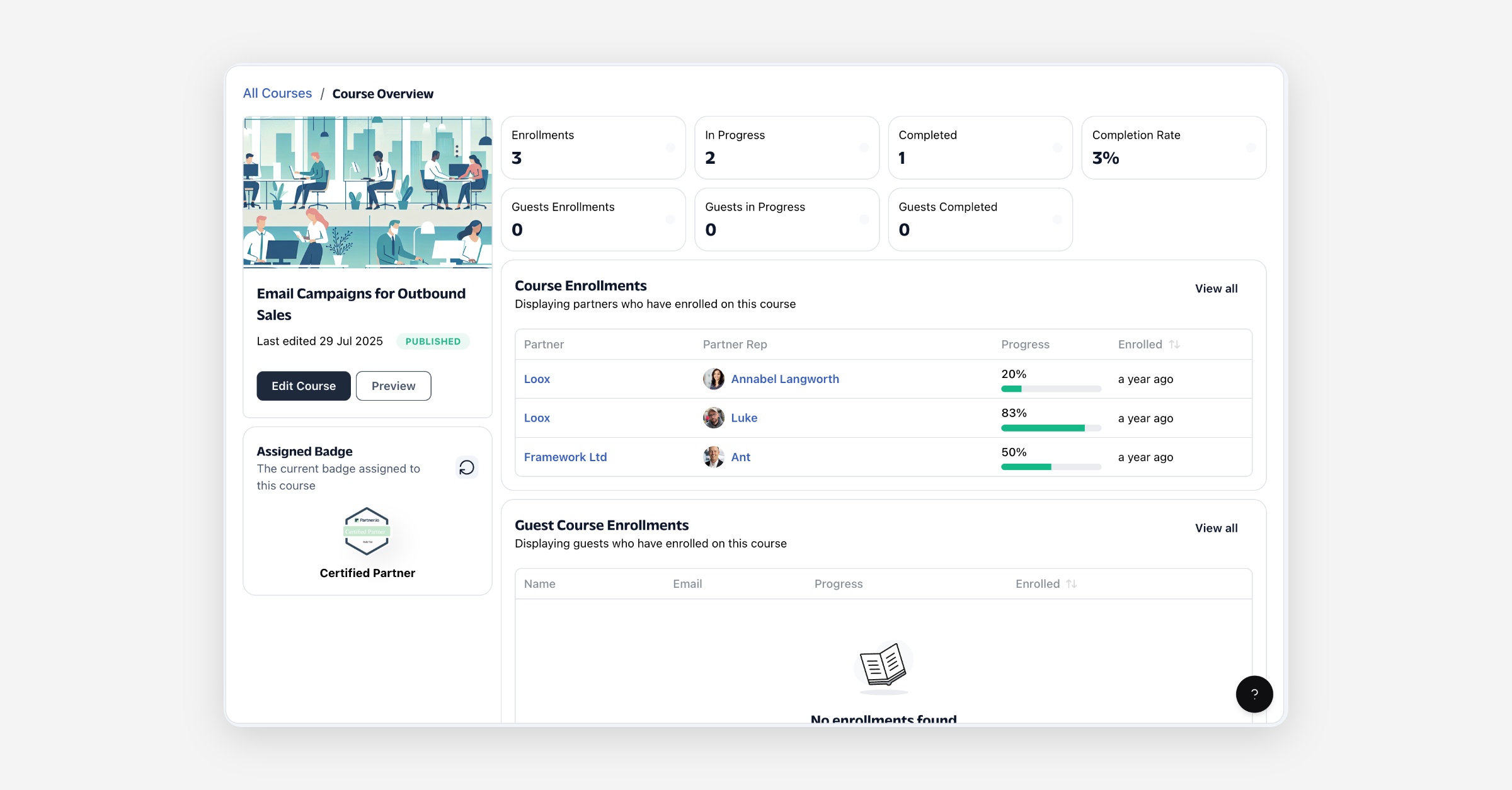
Badge on completion. Attach a badge to a course (in the course overview). When a partner passes, that badge is awarded to them automatically — a lasting signal of a trained, credentialed partner. Badges can feed into your rewards and program tiers.
Reward completion further. Beyond the badge, completing a course can pay out real rewards — a gift card, swag, or a commission — by setting up an automation that triggers when a partner completes a course. The automation's conditions decide who qualifies.
Nothing on a fail. If a learner finishes but doesn't meet the pass rate, the attempt is recorded but no badge or reward is granted.
Sharing with guests
Sometimes you want people who aren't partners to take a course — a prospective partner, a customer, a colleague. Turn on sharing from the course editor's Share menu to expose two links:
Share with your team (preview only) — an internal preview link; completion isn't tracked.
Share with guests (track completion) — a public link. A guest opens it, enters their name and email, and works through the course. Their completion is tracked as a guest enrollment alongside your partners.
On passing, a guest earns the course's badge as a credential and a certificate they can add to LinkedIn. Guests are learners, not partners — they don't receive partner rewards (gift cards, swag, commissions).
Tracking enrollment
Open a course to see its enrollment and completion stats — total enrollments, in progress, completed, and completion rate — split across partners and guests, with pass rates.
Partners — reps in your program working through the course in the portal.
Guests — learners you've shared a course with who aren't full partners.
Permissions
Courses are managed by your team from the admin app. Partners only ever see Published courses in the portal; guests only reach a course through its shared public link. Drafts stay private to your team.
A worked example: partner onboarding
The highest-leverage first course is your partner onboarding:
Generate with AI from the title "Getting started as a partner", optionally pointing it at your product page or a training document.
Review the generated Draft — tighten the lessons so they cover your product, your ideal customer, your pricing, and what a good lead looks like.
Attach an onboarding badge so partners earn it on completion, and set a pass rate if you want them to demonstrate they've absorbed the material.
Publish. New partners now complete onboarding on their own, earn the badge, refer better leads, and need less hand-holding.
FAQ
How do partners get a course? Publish it. A published course shows up in the portal for all of your partners — there's no per-partner assignment. They enroll to start it.
Do I need partners before I can build a course? No. You can build and publish courses first — they'll be waiting in the portal the moment partners join.
How do partners get rewarded for completing a course? Passing awards the badge attached to the course automatically. To pay out more — a gift card, swag, or a commission — set up an automation that triggers on course completion.
Can someone who isn't a partner take a course? Yes. Turn on sharing and send them the public completion-tracking link. They enter their name and email, and you'll see their completion under guest enrollments. Guests earn the badge and a certificate but not partner rewards.
What's the difference between a course and a training document? A training document is a source file (a PDF, a slide deck) you can hand to AI as context. A course is the finished, interactive training partners actually work through.
My AI course shows Error — what now? Generation didn't complete. Try Generate with AI again (a clearer title or a more focused document/URL helps), or build the course from scratch.
Can I take a published course down? Yes — unpublish it back to Draft and partners will no longer see it.