

The Partner Directory widget embeds your partners on your own website — a branded, searchable directory visitors can browse to discover and reach your partners. The partners themselves come from your program; on this page you style the directory to match your brand and get a snippet to paste onto your site. Once it's embedded, it stays in sync on its own.
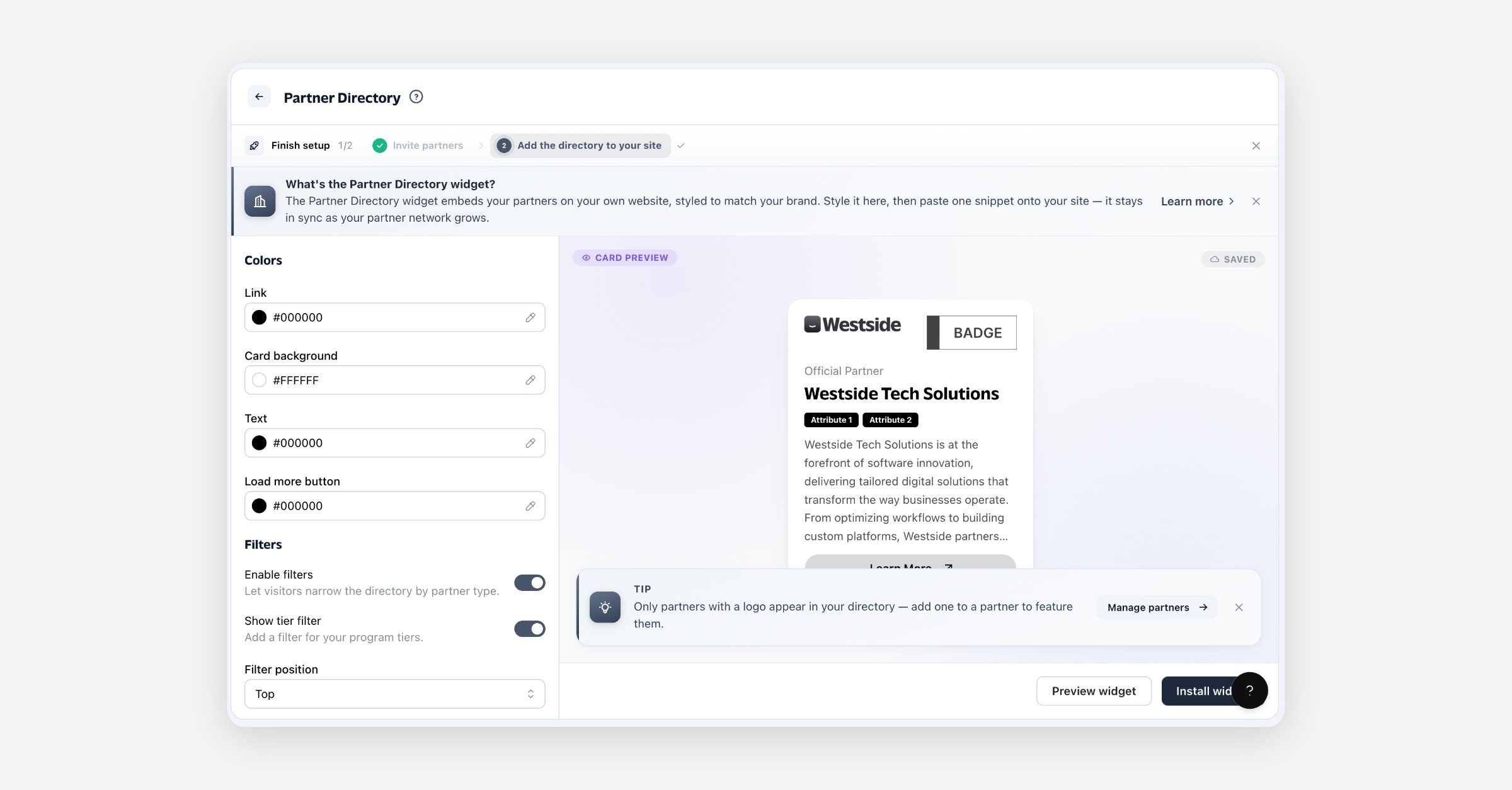
What the Partner Directory widget is
It's an embeddable version of your partner network. The partners themselves live in your program — this page doesn't add or edit partners, it controls how they appear on your site and gives you the code to place them there. Style changes here only affect the embedded widget; they never change your partners.
Before you start
The widget shows the partners in your program, so you'll want at least one partner before you embed it — otherwise the directory renders empty. Two things to know:
Only partners with a logo appear. A partner without a logo is skipped, so the grid always looks complete. Add a logo to any partner you want featured.
You'll need somewhere to paste the snippet — any page of your website where you can add HTML.
Styling the directory
Use the panel on the left; the preview updates as you go and every change saves automatically.
Colors
Control | What it does |
|---|---|
Link | Color of links and the attribute badges on each card. |
Card background | Background color of each partner card. |
Text | Color of the partner name and description. |
Load more button | Color of the button that loads more partners. |
Filters & layout
Control | What it does |
|---|---|
Enable filters | Let visitors narrow the directory by partner type. |
Show tier filter | Add a filter for your program tiers (shown only when filters are on). |
Filter position | Where the filter bar sits — top, left, or right of the grid. |
Columns | How many partner cards sit side by side (2–4). |
Which partners show
By default the directory shows every partner type. Use Displayed partners to restrict it to specific partner types — leave it empty to show them all. Either way, only partners with a logo appear.
Installing it on your site
Select Install widget to open the snippet, then Copy snippet and paste it into your website's HTML wherever you want the directory to appear. The snippet is a single element plus a script tag — for example on your "Partners" or "Find a Partner" page.
Your partners stay live automatically. The script loads your current partners each time the page is viewed, so new and updated partners appear without you touching the snippet.
Styling is baked into the snippet. Your colors, columns, filter settings, and partner-type selection are written into the snippet's attributes, so if you restyle the widget here, copy the updated snippet and replace the one on your site.
Use Preview widget at any time to see the full directory rendered with your live partners, exactly as visitors will.
Which partners show
The widget always reflects your live partners:
Partners with a logo only — partners without a logo are skipped so the grid stays clean.
Filtered to your selected types — if you chose specific partner types, only those appear.
Updates on their own — add or approve a partner and the widget reflects it within a few minutes. No re-embedding.
FAQ
Do I add partners here? No. Partners are added and managed in your program. This page only styles and embeds the directory that displays them.
Why is a partner missing from my directory? Most often the partner has no logo — only partners with a logo are shown. If you've limited the directory to certain partner types, check the partner is one of those types.
Do I need to update the snippet when my partners change? No — partners load live each time the page is viewed, so new and updated partners appear automatically.
What about when I restyle the widget? Yes — styling is baked into the snippet, so after you change the appearance here, copy the updated snippet and replace it on your site.
Why is my directory empty? You don't yet have a partner with a logo. Add a partner (or a logo to an existing one) and it will appear.
Can I match it to my brand? Yes — set the card, text, link, and button colors, choose the number of columns, and decide whether visitors can filter. The preview shows your changes live.