

A lead is a potential customer one of your partners has introduced to you. Partner.io tracks each one from the referral that created it to the day the deal closes, along with its deal value, the revenue it brings in, and the commission the referring partner has earned.
You'll find them under Leads in the sidebar. The rest of the Leads section — your referral form, referral links, lead fields and lead attributes — sits beneath it.
Before you start
You need a partner and at least one partner rep in your program before a lead can exist, because every lead records who referred it. Until then the Leads page shows you what to set up first.
Nothing else is required. Leads start arriving as soon as your partners have a way to send them.
Where leads come from
Your referral form — a partner rep refers a lead from your partner portal, from quick refer, or through a referral widget embedded on their own site.
Referral links — a tracked link a partner shares. Anyone who signs up through one is attributed to that partner automatically.
You — add a lead by hand to record a referral that came in offline or through another channel.
Integrations — a connected integration such as Shopify or Stripe can create leads when a referred customer installs or pays.
Your CRM — a lead synced in from HubSpot, Salesforce or Pipedrive.
Events, imports and the API.
The lead page names its origin, and shows a card linking back to the event, referral link or deal that produced it where there is one.
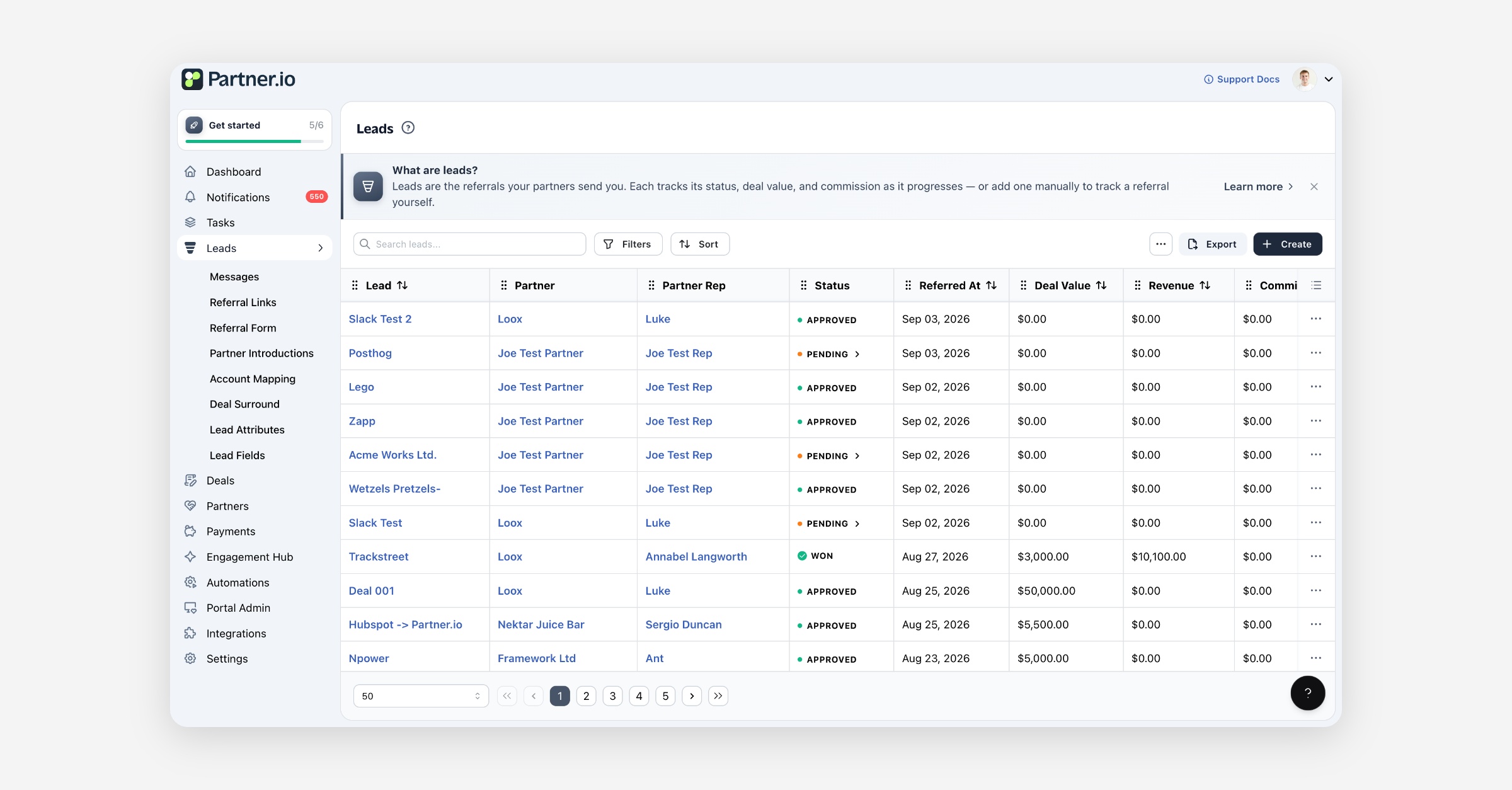
The leads list
Searching
The search box matches a lead's name, the partner rep who referred it, the partner they belong to, and the answers stored on the lead itself — so searching for a value you collected on your referral form finds every lead carrying it, whether it was typed in as free text or picked from a list.
Filtering
Open Filters and combine as many as you need. Applied filters show as pills above the table, and they live in the page URL, so a filtered view can be bookmarked or shared with a colleague.
Filter | What it narrows to |
|---|---|
Partner | Leads referred by one partner. |
Partner Rep | Leads referred by one person. Narrows to the chosen partner's reps if you picked one. |
Assigned To | Leads whose partner is assigned to a particular member of your team. |
Status | One of the six statuses below. |
Referred At | A date range for when the referral came in. |
Attribute Name / Attribute Value | Leads carrying one of your lead attributes. |
Has Shopify install / Shopify app | Only when a Shopify integration is connected. |
Partner and Partner Rep are linked in both directions: choose a partner and the rep list narrows to their people, choose a rep and the partner list narrows to theirs.
Sorting
Select a column header to sort by it. Lead name, Referred At, Deal Value, Revenue, Commission and Pending Commission can all be sorted; sorting is done across every matching lead, not just the page you're looking at.
Choosing your columns
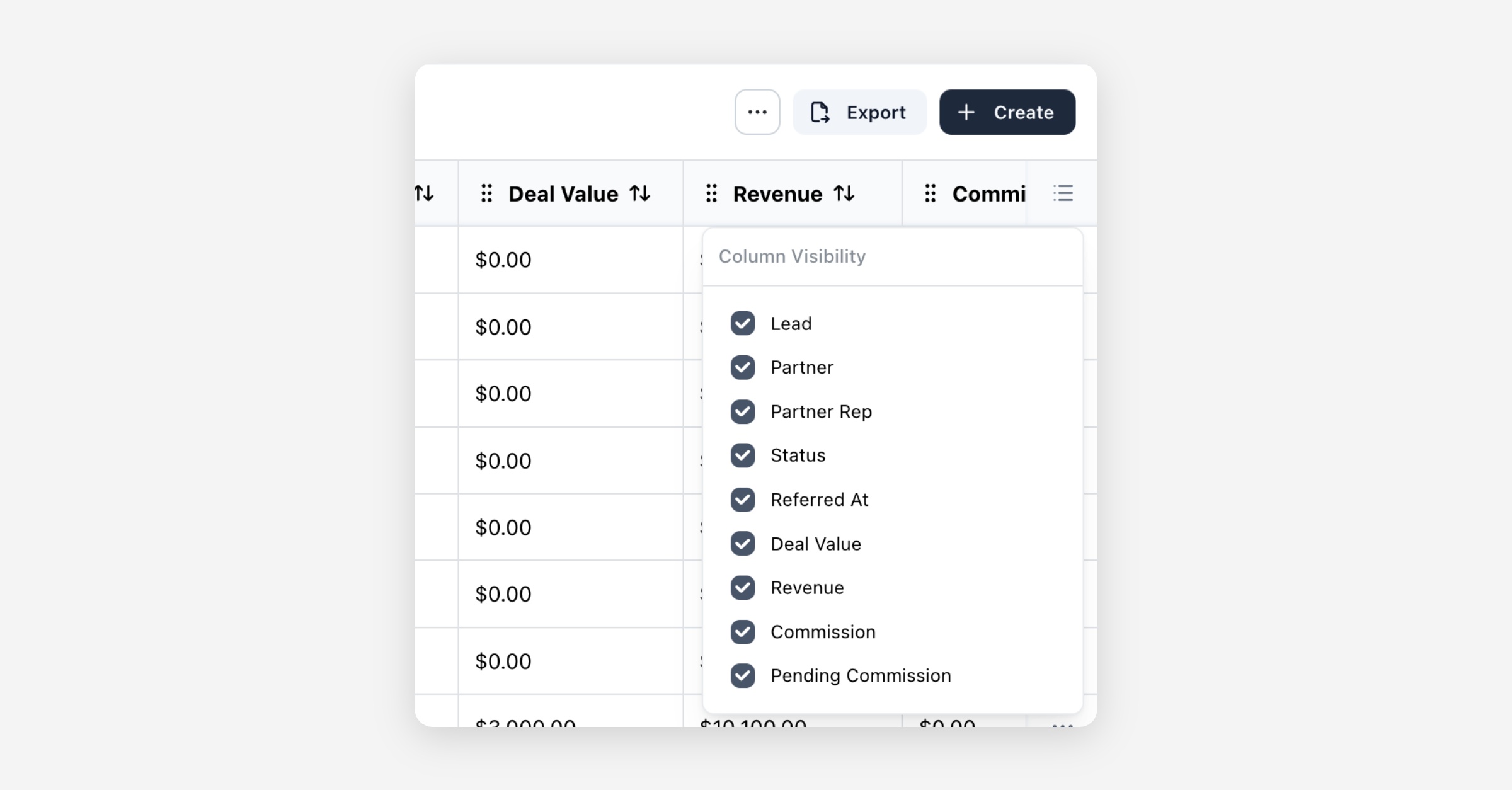
The column icon above the table opens Column Visibility. Tick a column to show it, untick to hide it, and Reset puts the defaults back. You can also drag a column header to reorder the table, with Reset layout to undo that.
Both your column choice and your column order are remembered in your browser, per table, so the Leads list looks the way you left it next time you open it. They're yours alone — nobody else on your team sees your layout.
Exporting to CSV
Export downloads the leads you choose as a CSV file.
Select Export.
Optionally narrow by Partner, Partner Rep and Status. Whatever you already had filtered in the list is pre-filled here.
Select Export. The file downloads to your computer.
Each row carries the lead's name, the date it was created, its status, the partner and the rep who referred it, the first contact's name, email and phone, the expected close date, deal value, commission paid and pending, revenue, and the currency.
Every one of your lead fields is exported too, one column each, in the order they sit in your library — including a field your referral form doesn't ask for, since the export covers the record rather than the form. Answers are written as you'd want to read them: a Select shows the choice's label, a Checkbox shows Yes or No, and a date shows as YYYY-MM-DD.
The export uses only the Partner, Partner Rep and Status choices in the dialog. A date or attribute filter you had applied to the list is not carried into the file.
Adding a lead yourself
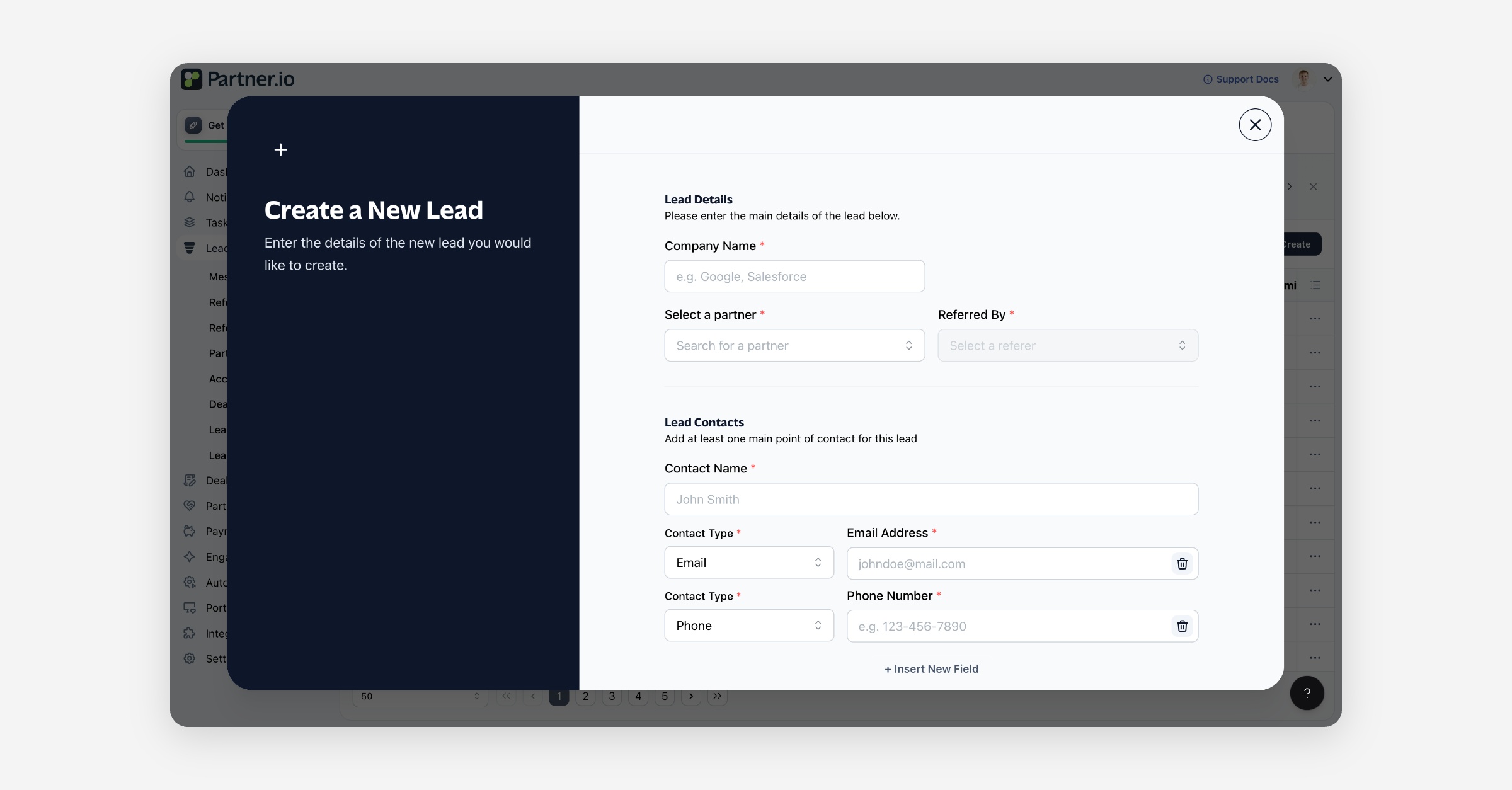
Select Create.
Enter the Company Name — this becomes the lead's name.
Pick the partner, then the rep who referred it.
Add at least one contact: a name and an email address. Add a phone number, more fields, or more contacts as you need them. If your account requires a phone number on a lead, one is asked for here.
Answer anything under Additional Details — these are your own lead fields, and the section only appears once you've created some.
Select Create Lead.
A lead you create this way starts as Approved, because you're recording a referral you've already accepted rather than one waiting on your review.
The same form opens as Edit Lead from a lead's row menu or from Edit Contacts on the lead itself. Editing it can't move a lead to a different partner or rep — those are fixed once the lead exists.
Statuses
A lead is always in exactly one of six statuses.
Status | What it means |
|---|---|
Pending | A new referral waiting on your review. Approve it to start working the deal, or reject it. |
Approved | You've accepted the referral and are working it. Commission accrues as revenue comes in. |
Rejected | The referral was declined. It earns the partner nothing. |
Won | The deal closed. The referring partner earns their commission. |
Lost | The deal didn't close, so no commission is owed. |
Churned | A customer you had won has since left. |
Changing a status
Select the status badge — on a row in the list or at the top of the lead — and pick the new one. The change saves straight away; it isn't held with the rest of the lead's edits.
Moving a lead to Won, Lost or Churned stamps it with a closed date. Moving it back off one of those clears that date again.
A lead synced to your CRM has its status managed there. The badge stops being a menu and says so, and the status follows whatever your CRM reports.
Referrals that arrive from partners start as Pending. If you'd rather not review each one by hand, lead auto approval can approve the ones matching conditions you set.
The lead page
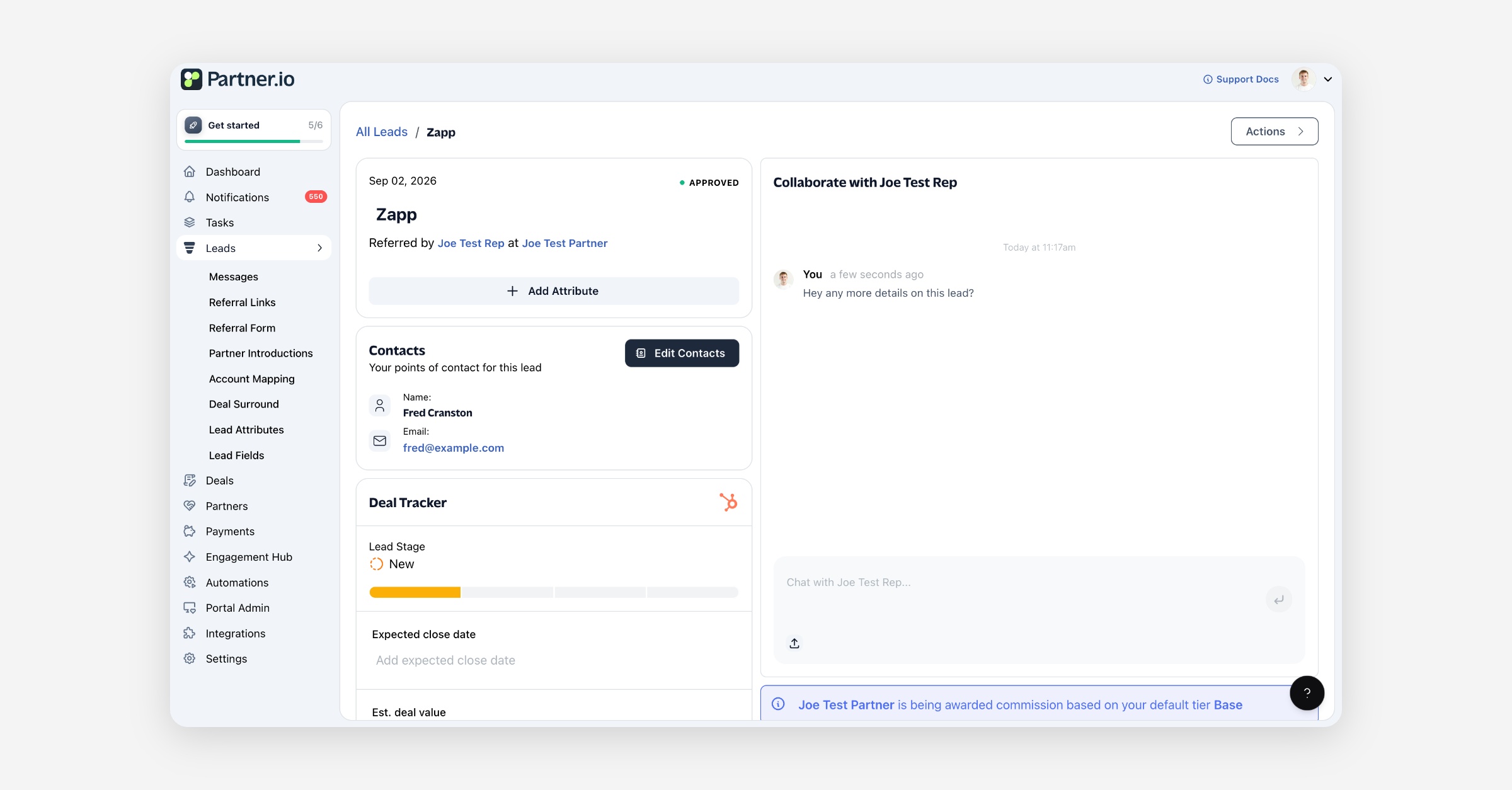
Select a lead to open it. The left column is the record; the right column is the deal's history and money.
On the left
The lead itself — the referral date, the status badge, the lead's name (select it to rename it), who referred it and which partner they belong to, its attributes, and a card naming the event, referral link or deal it came from.
Contacts — everyone you're dealing with at the lead, with their emails and phone numbers. Edit Contacts opens the lead form to change them.
Deal Tracker — the expected close date and the estimated deal value, in the lead's currency. Once the deal is closed the expected date is replaced by the date it closed. A lead synced to your CRM also shows its pipeline stages here, and a link straight through to the record in your CRM.
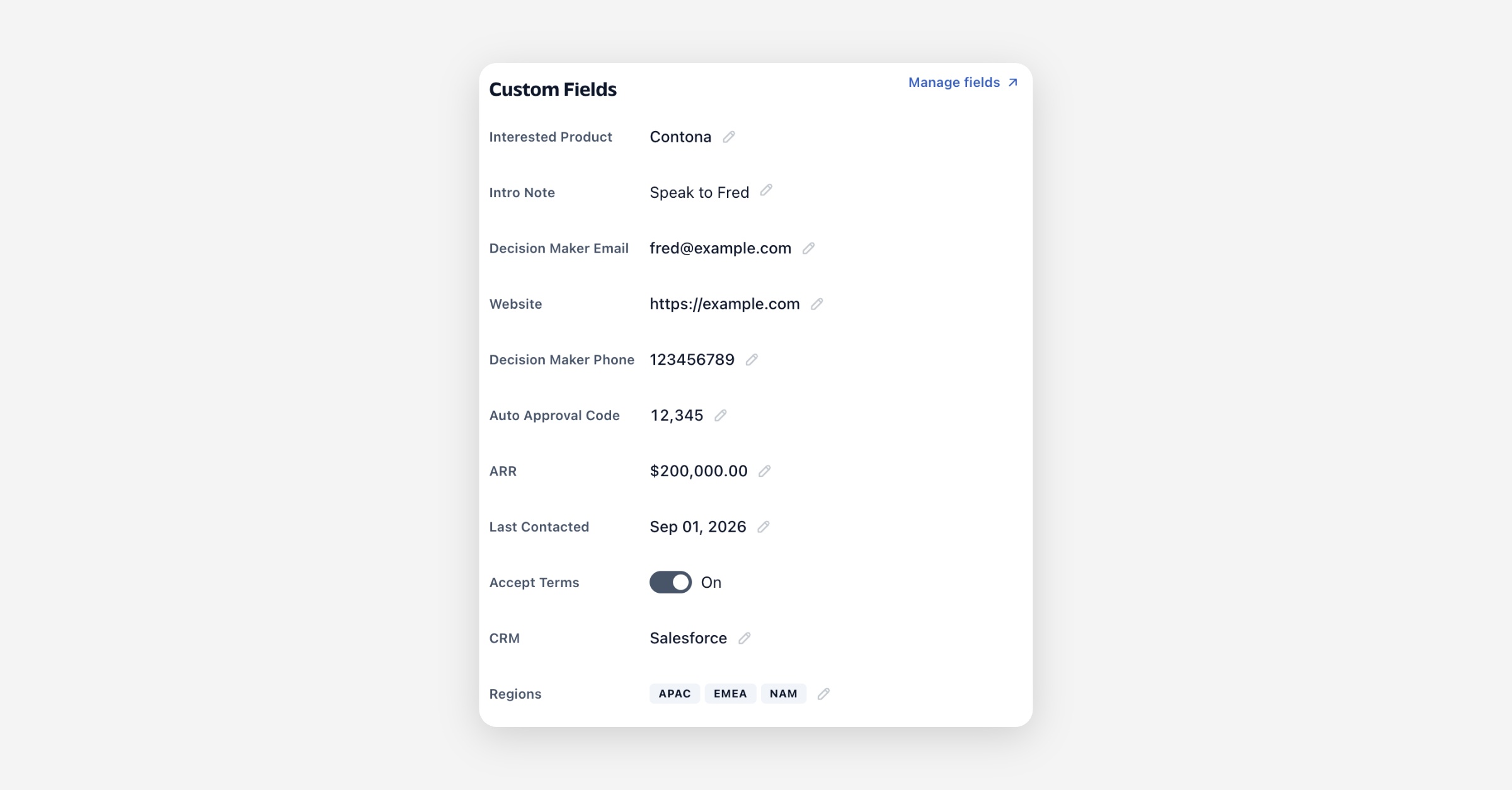
Custom Fields — your own questions about this lead. See below.
Shopify — the stores this lead has installed your app on, when a Shopify integration is connected.
Customer Mapping — the identifiers that tie this lead to a customer in another system. An External Customer ID for any third-party system, and a Stripe Customer ID when Stripe is connected, which Partner.io fills in itself when it can match the customer's email to one of the lead's contacts. Filling it in by hand lets paid Stripe invoices flow back as revenue.
On the right
Collaboration — a shared conversation with the referring rep. They see the same thread in their portal, and either side can attach files.
Commission — a note of which program tier the partner is being paid on, linking to both.
Total Revenue, Commission Pending and Commission Paid for this lead.
Revenue — the payments recorded against the lead, most recent first. Add Revenue records one by hand; View All opens the full list.
Recurring Revenue Plans — subscriptions or other repeating revenue attached to the lead.
Products — the line items on the deal, read from your CRM.
Timeline — everything that has happened to the lead: its creation, status changes, value changes, CRM syncs, payments and commissions. You can add your own notes here too.
The actions menu
Top right of the lead:
Sync to CRM and Sync from CRM push the lead out to your CRM or pull the current version back in. A lead can't be synced while it's Pending or Rejected, or if it has no contact; you're told which of those is in the way.
Edit opens the lead form.
Delete removes the lead and everything hanging off it. This can't be undone.
Saving your changes
The lead's name, deal value, expected close date, customer mapping and custom field answers are all one form. Change any of them and an Unsaved changes bar appears at the bottom of the page: Save changes writes them all together, Discard puts them back as they were.
Statuses and attributes are the exceptions — those save the moment you set them.
Custom fields on a lead
A referral tells you a company name and a contact, and rarely much else. Lead fields are the questions you define to capture the rest: budget, timeline, use case, whatever qualifies a lead in your program.
Every field you've defined appears in the Custom Fields section on the lead, whether or not your referral form asks for it, so your team can fill in or correct an answer as a deal progresses. Select an answer to edit it in place; it's held with the rest of the form and written when you select Save changes.
Manage fields at the top of the section opens your library, under Leads → Lead Fields, where fields are created, edited, reordered and deleted. That's covered in Lead fields.
Where the answers come from
Your referral form. A field you put on the form is answered by whoever refers the lead — on your referral page, in quick refer, or in an embedded referral widget.
Your team, on the lead itself, at any time.
The partner, in their portal, if the field is set to Editable.
Your CRM. A field mapped to a CRM property takes its answer from there whenever the lead is synced in. A value your CRM can't give is left alone rather than blanked.
The API, when a lead is created or updated through it.
Partner access
Every field carries one setting for what partners may do with it on a lead they referred.
Setting | What the partner sees |
|---|---|
Hidden | Nothing. The field is for your team only. |
View only | The field and its answer, with no way to change it. |
Editable | The field and its answer, which they can update. |
This governs the lead record in the partner portal, not your referral form. A field you put on the form is asked whatever its access, because putting it there is you asking for it — so a Hidden field can still be answered by the referrer at the point of referral, and then never seen by them again.
Partner access affects what partners see, and nothing else. A hidden field is still a normal field to you: it shows on the lead, it's in your export, search matches its answers, and rules can read it.
Editing a lead from Messages
Under Leads → Messages, a conversation with a partner opens the lead beside it, so you can work the record without leaving the thread. It's the same lead and the same answers, laid out as three tabs:
Details — status, CRM status, created date, then collapsible sections for the referrer, the deal tracker, payments, your custom fields (under Additional Details), customer mapping and attributes.
Contacts — add contacts and their email and phone details.
Activity — the same timeline as the lead page.
Changes here work the same way: edit as much as you like, then Save changes or Discard changes in the bar at the bottom.
FAQ
Can I change which partner a lead belongs to? No. The partner and the rep are set when the lead is created and are locked afterwards, because the lead's commission is attributed to them.
Why can't I change a lead's status? It's synced to your CRM, which owns the status. Change it there and the next sync brings it across.
Why can't I sync a lead to my CRM? A lead has to be past Pending, not Rejected, and have at least one contact. The lead page tells you which of those is missing.
Does deleting a lead remove its revenue and commission? Yes. Deleting is permanent and takes the lead's related records with it.
Do my lead fields show up in the CSV export? Yes, one column each, including fields your referral form never asks for.
Is a lead field the same as a lead attribute? No. Attributes are labels you apply to leads to segment and filter them. A lead field records an answer — a value per lead, of a type you choose, that can come from your referral form.
A worked example
A partner refers a lead through your referral form, answering the "Budget band" question you put on it.
The lead lands in your Leads list as Pending, with the budget answer already on it.
You open it, read the answer under Custom Fields, and set the status badge to Approved.
You fill in an Est. deal value and an Expected close date in Deal Tracker, and select Save changes.
You use Collaboration to ask the referring rep for an introduction, and they reply in their portal.
The deal closes. You set the status to Won, which stamps the closed date, and the partner earns commission on the revenue recorded against the lead.
Later you filter the list to Status: Won and export it, and the budget band each partner referred comes out as its own column.