

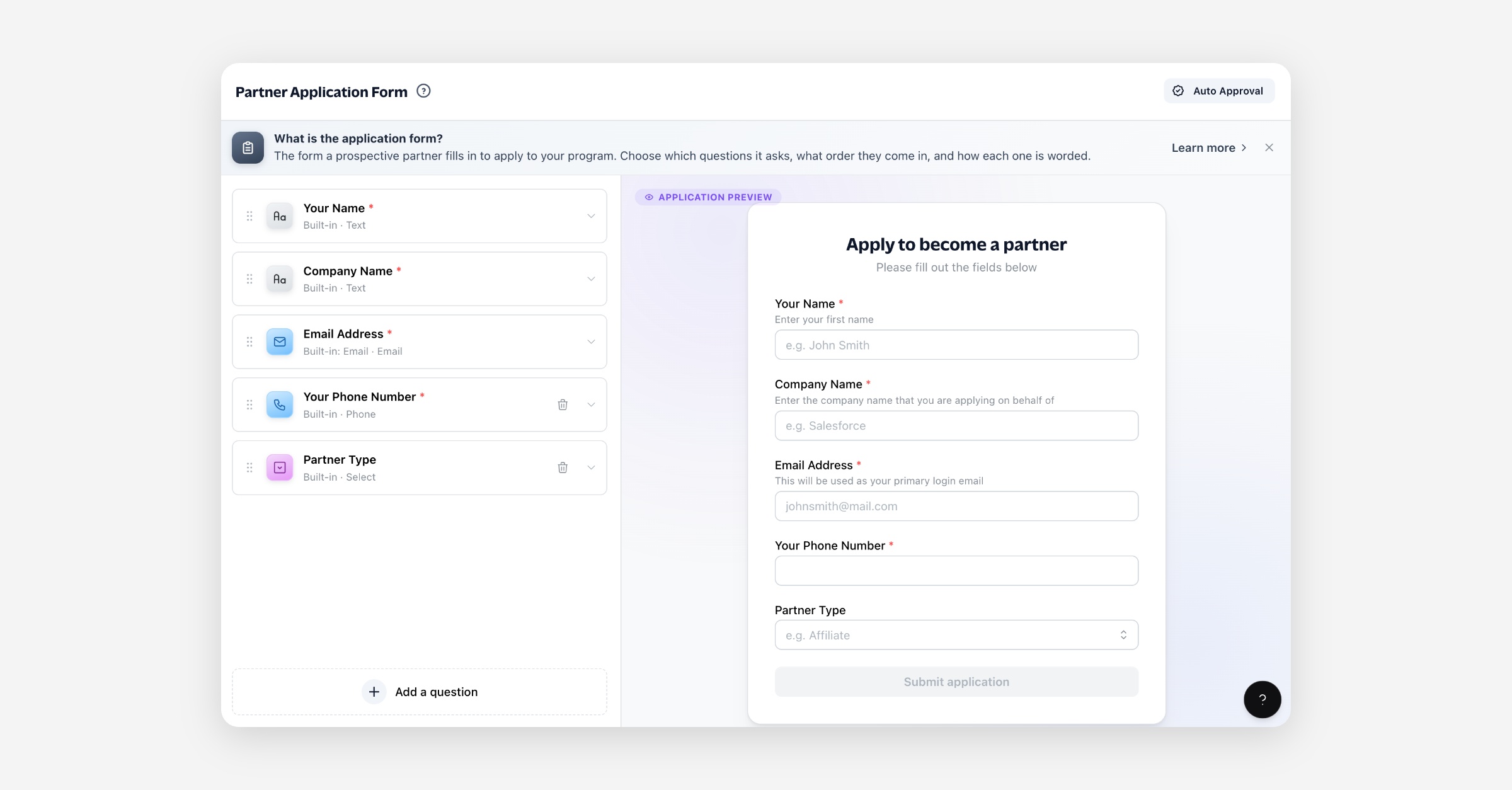
The partner application form is what a prospective partner fills in to apply to your program. You choose which questions it asks, in what order, and how each one is worded.
You'll find it under Portal → Partner Application.
Where it appears
Your partner portal's application page.
Any application widget you've embedded on your own site.
Both read the same form, so a change here reaches every place applicants can apply.
Prerequisites
None. Every program has an application form from the day it's created, already carrying the details a partner record can't be built without.
The two kinds of question
Built-in fields
The details Partner.io needs to create the partner and their rep, so the platform defines what they are and what they collect. Where each answer goes varies: Name creates the rep who applied, Company Name names the partner, and Email is used for both.
Field | On the form |
|---|---|
Name | Always |
Company Name | Always |
Always | |
Partner Type | Optional |
Phone Number | Optional |
The first three can't be removed: without them there's no partner to create. Partner Type and Phone Number are yours to add or remove whenever you like.
Partner Type offers whichever partner types you've set up, so it stays in step with them automatically.
Your own fields
Anything else you want to ask. Add a field you've already created, or create a new one without leaving the form. Answers are saved against the partner's record, show on their profile, and can be used in rules.
How to
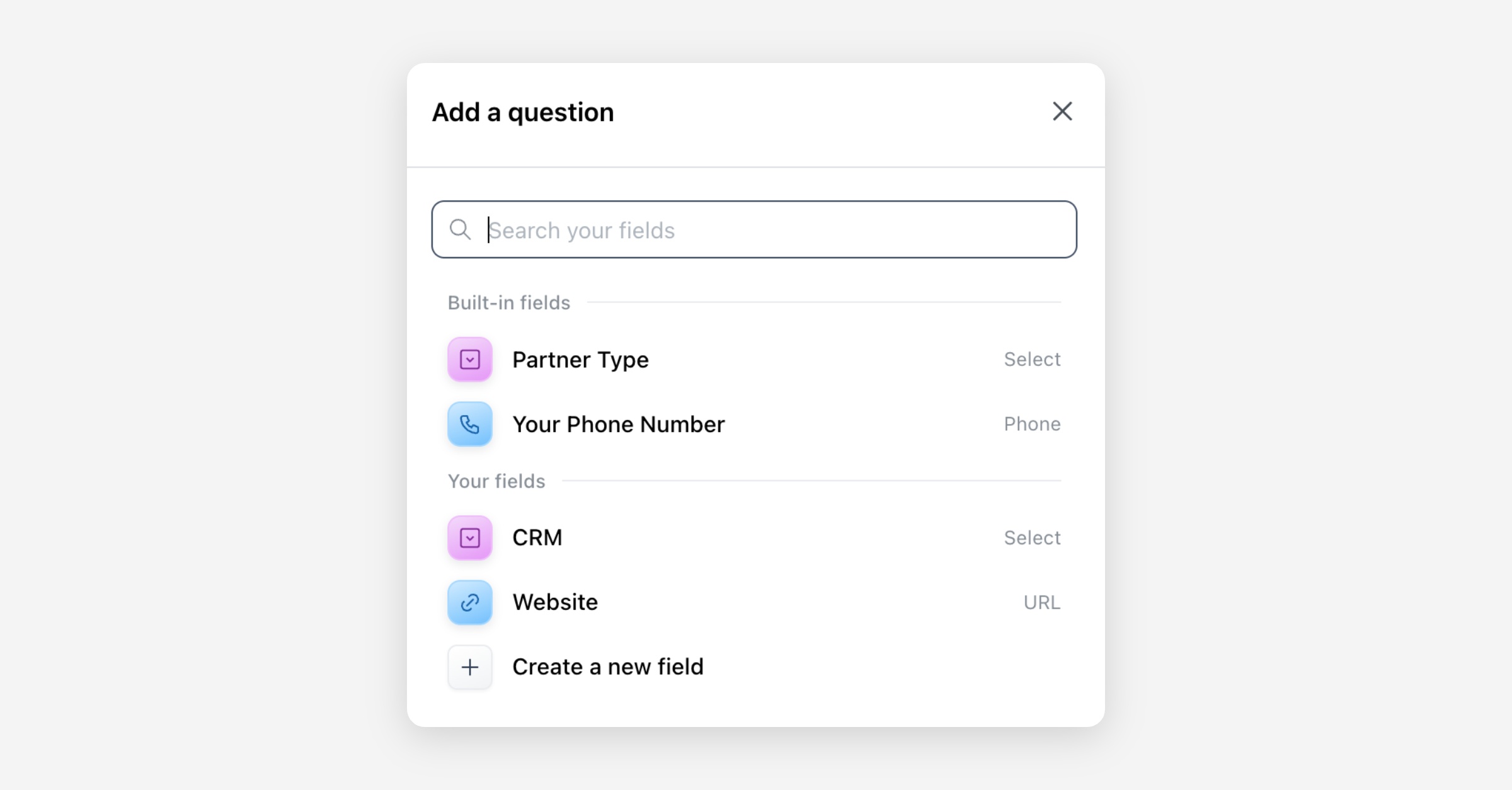
Add a question
Select Add a question.
Search, then pick a field — or select Create a new field to make one on the spot. Whatever you typed in the search box becomes its starting name.
It's added to the end of the form.
Creating a field and adding it to the form are two separate steps, so a field you create stays in your field library whether or not it ends up on this form.
Every field type can be asked here, including Number, Money and Date. Your fields themselves are managed under Partners → Partner Fields, covered in Partner fields.
Reorder
Drag a question by its handle. Applicants meet them top to bottom, and the preview follows as you drag.
Open a question
Select a question to open its settings. Everything about it lives there: whether it's required, how this form words it, and — for one of your own fields — the field its answers are saved to.
A question marked required carries a red asterisk in the list, the same mark applicants see.
Mark a question required
Open the question and turn Required on.
For the three always-included fields the switch is locked on, since a partner record can't be created without them.
Reword a question
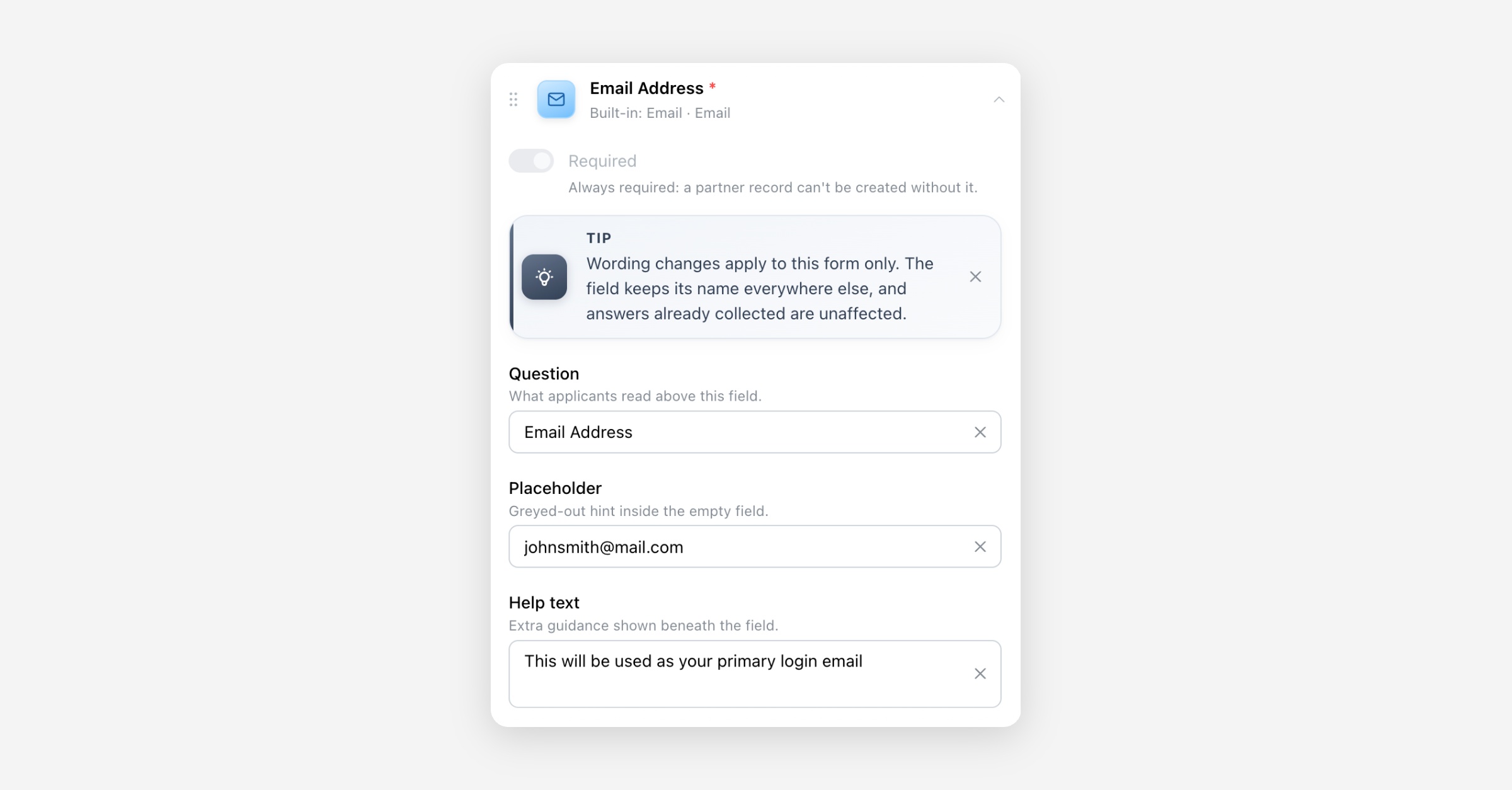
Open a question and edit any of:
Question — what applicants read above the field.
Placeholder — the greyed-out hint inside the empty field. Not offered for a checkbox, which has no empty box to hint at.
Help text — extra guidance beneath the field.
Leave a box empty to use the default wording; the default shows greyed out inside it. Clear a box at any time to hand the wording back to the default.
Wording applies to this form only. The field keeps its name everywhere else: your field library, the partner's profile, and any rules that reference it. Answers already collected are unaffected.
This is also how you translate your form. If your applicants read Polish, word every question in Polish; nothing else in your account changes.
Edit the field behind a question
For one of your own fields, the bottom of an open question shows the field its answers are saved to. Select it to open that field's own settings, where you change its name, its options, and what partners can see. Changes there apply everywhere the field appears, not just on this form.
Built-in questions have no such card. Their answers go wherever creating the partner needs them rather than into a single field, and Partner.io defines them, so there's nothing to open.
Remove a question
Select the remove icon on the question. You'll be asked to confirm.
Removing a question stops it being asked. Answers already collected are kept, and if it was one of your own fields, the field stays in your library — only this form stops asking for it.
The three always-included fields have no remove icon.
Field reference
A question shows the type of answer it accepts. On a form that is one of: text, long text, email, URL, phone, checkbox, select, or multi select.
The type belongs to the field, not to this form, and can't be changed after the field is created — saved answers are stored by type.
Permissions
Managing the application form is an admin surface. Partners never see it — they see only the form itself.
Limits
A field can appear on the form only once.
A question, placeholder or help text is up to 255 characters.
FAQ
Does marking a question required stop applications without it? It shows applicants an asterisk. Requiredness isn't currently enforced on submission.
If I reword a built-in question, does it still collect the same thing? Yes. Wording is separate from what a question collects. Retitle "Company Name" as something else and answers still become the partner's company name — so keep the two aligned, or your partner records will hold something other than what they claim. A reworded built-in says which one it is beneath the question, so you can see at a glance when the two have drifted.
What happens to answers if I delete a field entirely? Deleting a field is done from your field library, not here, and it tells you what the deletion would affect before it goes ahead. Rules referencing the field block the deletion outright.
A worked example
You want applicants to tell you how big their fleet is.
Add a question → Create "Fleet size" as a new field.
Choose Select as the type and give it the choices
1–5,6–20and21+, then create it. "Fleet size" is now its name everywhere: your field library, partner profiles, and any rule you write against it.It's added to the end of the form. Drag it above Email.
Open it and turn Required on.
In the same panel, set the Question to "How many vehicles do you operate?", with Help text of "Include anything you lease." Applicants now read the full question, while everywhere else in your account still says "Fleet size".
Choices rather than a free-text number is what makes this answer easy to write a rule against later — every applicant lands in one of three known bands instead of typing "about 12".