

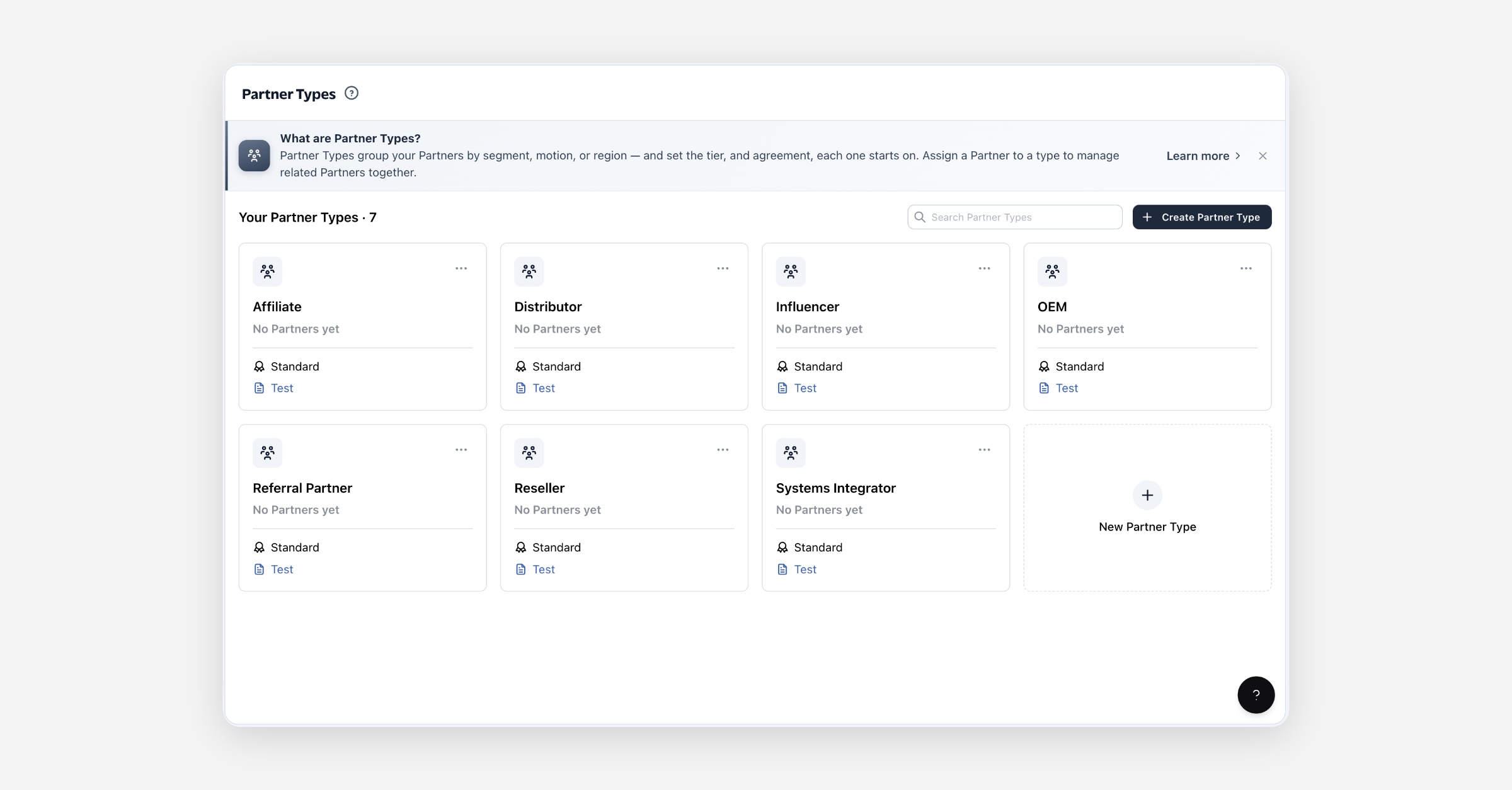
Partner Types are how you group your Partners — by segment, go-to-market motion, region, or however you run your program. Each Partner belongs to one type (or none), and a type sets the defaults its members start on: a program tier, and — if you use partner agreements — a default agreement.
What a Partner Type does
A type is more than a label. It does two jobs:
Groups Partners so you can filter, report on, and manage a segment together.
Sets the defaults new members start on — a program tier, and a default agreement when partner agreements are enabled.
A Partner can belong to at most one type at a time, and can also belong to no type — in which case it falls back to your company defaults for tier and agreement.
Tiers & agreements
This is the core of how types work.
Default tier
Every type has a default program tier — a tier is always set. When you create a type, it starts on your company's default tier; change it whenever you like.
Default agreement
If your account uses partner agreements, a type can also carry a default agreement. New members start on it. Leave it unset to add Partners to the type without an agreement. (If you don't use partner agreements, you won't see the agreement options.)
How members inherit the defaults
New Partners created in a type inherit that type's tier and agreement automatically.
Moving a Partner into a type (or between types) re-stamps their tier and agreement to the new type's defaults.
Removing a Partner from its type falls their tier and agreement back to your company defaults.
Per-Partner overrides
A type's tier and agreement are defaults, not locks. You can set a different tier or agreement on any individual Partner. Once you do, that Partner is treated as manually set and is protected from bulk changes to the type (unless you explicitly choose to include manual overrides — see below).
Changing a type's defaults
Changing a type's default tier or agreement affects future members only — Partners already in the type keep what they have. To move existing members onto the new default, use Apply to members.
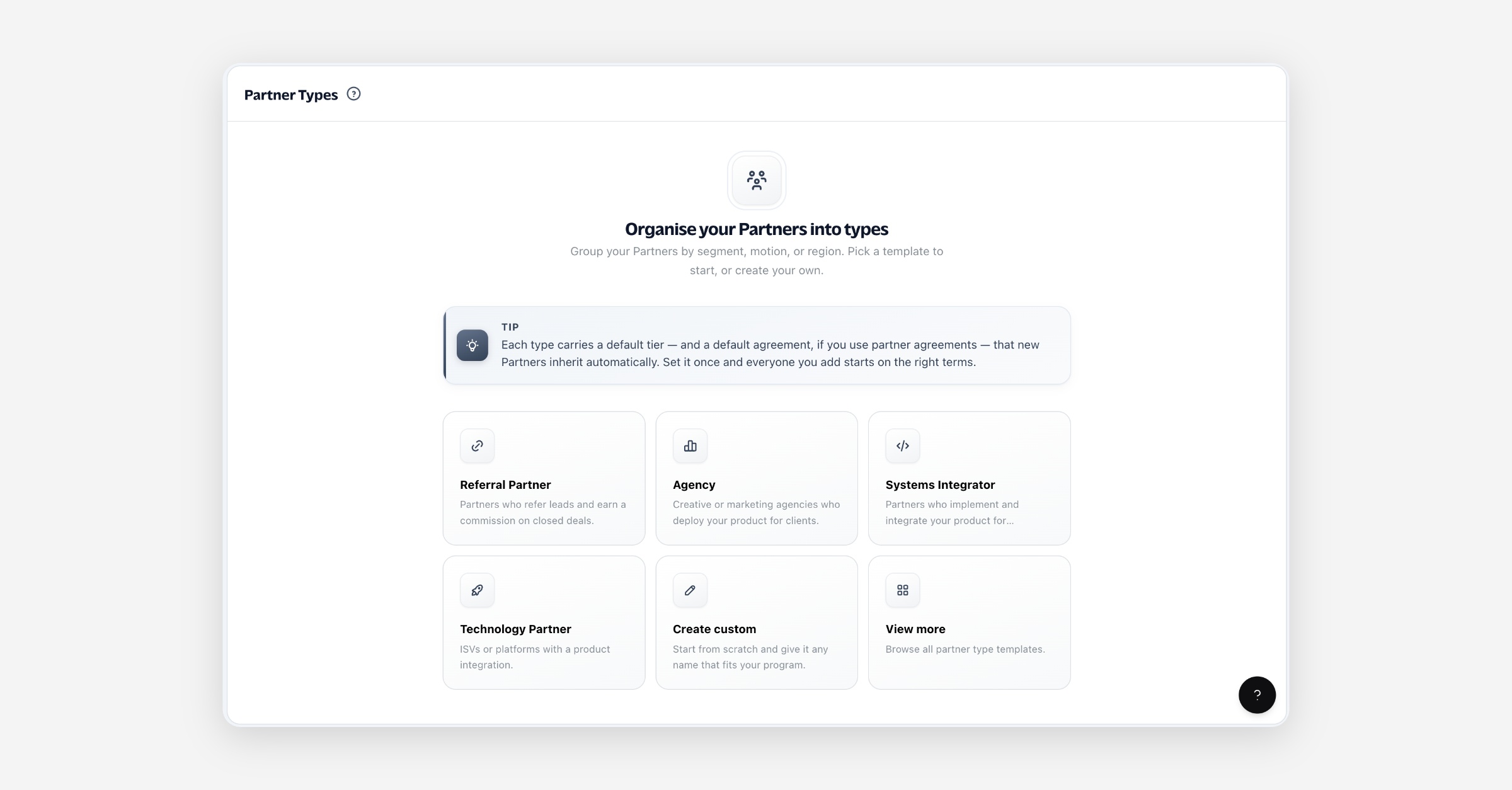
Creating a Partner Type
Open Partner Types.
Choose a starting point:
A template — pre-named suggestions grouped by motion (Referral, Reseller, Systems Integrator, Technology Partner, and more). Picking one creates the type immediately with that name.
Create custom — start from scratch and give it any name that fits your program.
The new type starts on your company's default tier (and default agreement, if agreements are on). Adjust its defaults from the type's ⋯ menu.
Assigning Partners to a type
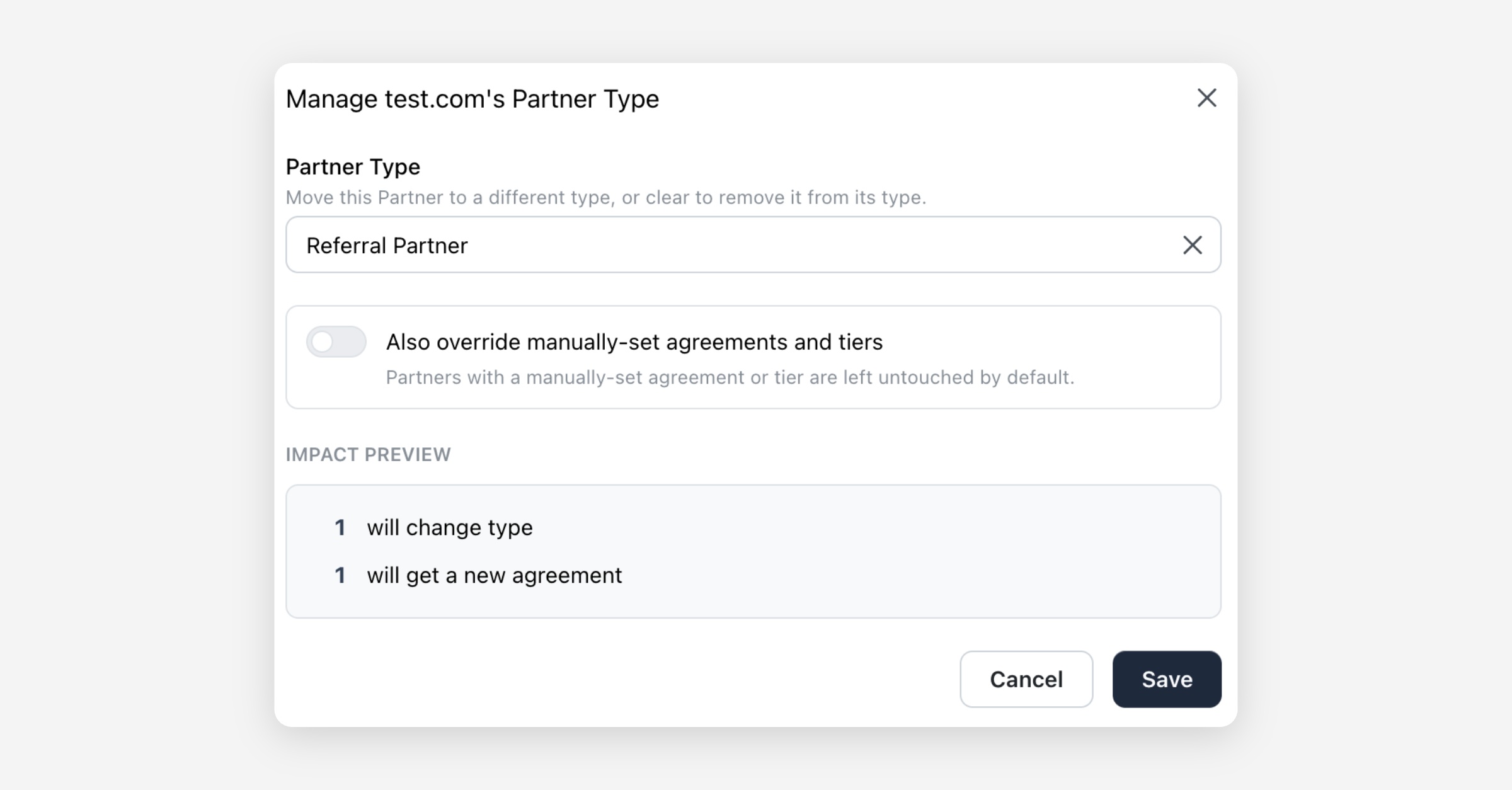
You can assign a Partner to a type from the Partner's profile, or in bulk from the Partners table.
Choose the type (or clear it to remove the Partner from its type).
Optionally toggle override manual to also re-stamp Partners whose tier or agreement was set by hand. Off by default, so manual overrides are preserved.
Review the impact preview — it shows how many Partners change type, tier, and (with agreements on) how many need to re-sign an agreement. A Partner whose tier and agreement both change is counted once.
Save.
Managing a type's defaults
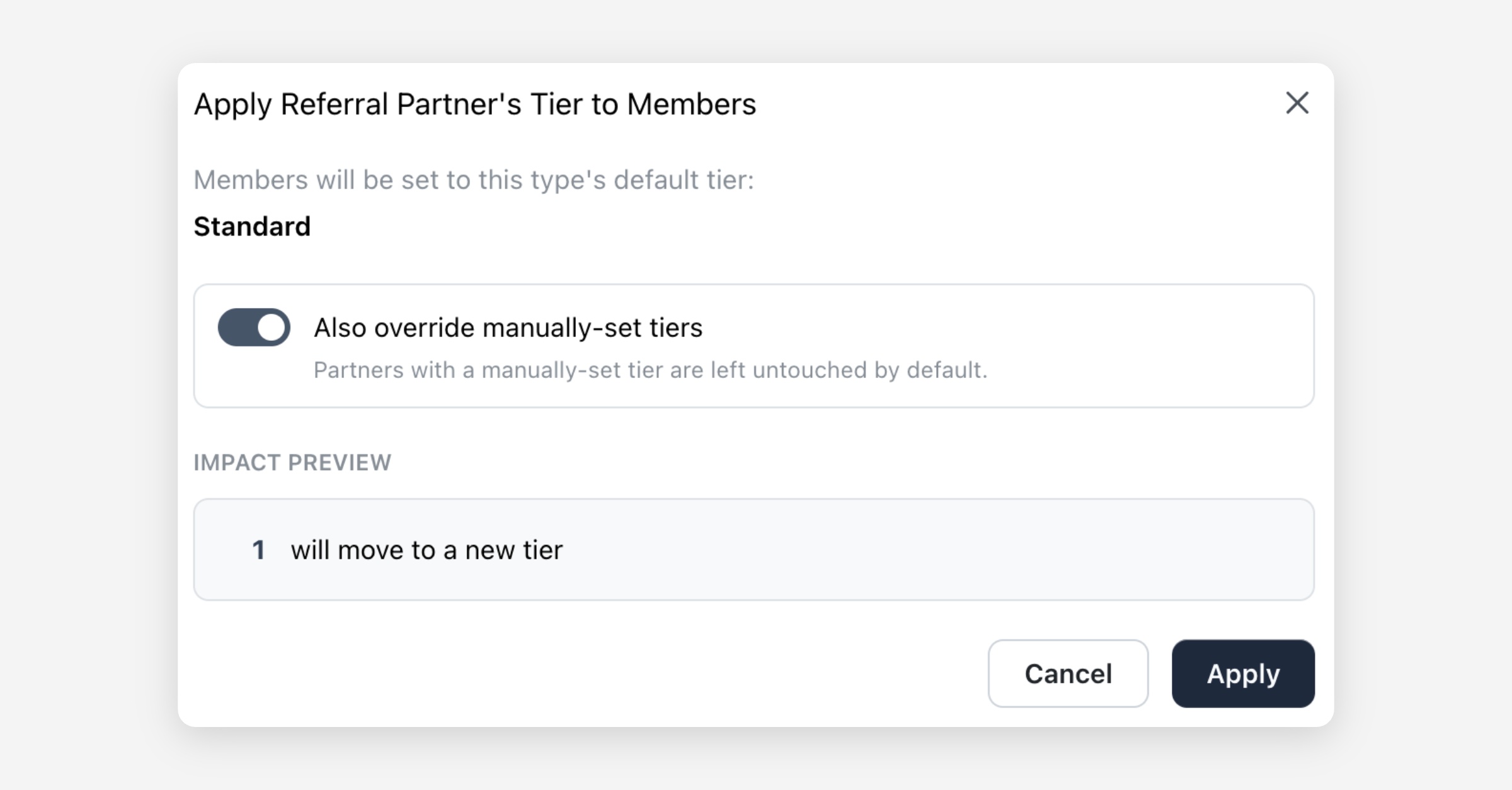
From a type card's ⋯ menu:
Action | What it does |
|---|---|
Set Default Tier | Changes the tier new members start on. Existing members are unaffected until you apply. |
Apply Tier to Members | Re-stamps the type's current tier onto existing members. Manual overrides are protected unless you include them. |
Set Default Agreement (agreements on) | Changes the agreement new members start on. Existing members are unaffected until you apply. |
Apply Agreement to Members (agreements on) | Re-stamps the type's current agreement onto existing members. Manual overrides are protected unless you include them. |
Rename | Renames the type. Members are unchanged. |
Delete | Deletes the type and detaches its members. The Partners themselves are not deleted; they fall back to your company defaults. |
Every Apply shows an impact preview before it runs, so you can see exactly who moves and how many agreements need re-signing.
Filtering & using types elsewhere
Partners table — filter by type to work with a segment.
Automations / flows — branch on a Partner's type.
Reporting — group and compare performance by type.
Permissions & availability
Managing Partner Types is an admin capability.
The agreement side of types (default agreement, apply agreement) only appears when your account has partner agreements enabled. The tier side always applies.
FAQ
Does deleting a type delete its Partners? No. Deleting a type detaches its members and falls them back to your company defaults. The Partners are untouched.
Can a Partner be in more than one type? No — a Partner belongs to one type at a time (or none).
I changed a type's tier but existing Partners didn't move. Why? Changing a default only affects future members. Use Apply Tier to Members to move the existing ones.
I applied a new tier but one Partner didn't change. That Partner's tier was set manually, so it's protected. Re-run the apply with include manual overrides turned on to move them too.
What happens to a Partner with no type? It uses your company default tier and agreement.
Worked example
You run a referral program and a reseller program on different commission tiers.
Create a Referral Partner type from the template; set its default tier to Silver.
Create a Reseller type; set its default tier to Gold and (if you use agreements) attach your reseller agreement as its default.
New Partners you add to each type start on the right tier and agreement automatically.
Later you upgrade all resellers to Platinum: change the Reseller type's default tier, then Apply Tier to Members. Partners you'd manually placed on a custom tier stay put unless you include them.