

Surveys let you collect structured feedback from your partners — run an NPS check, gather onboarding feedback, check in on your program, or build your own custom questionnaire. Once you publish a survey, it goes live for the partners you choose to see it.
Where to find surveys
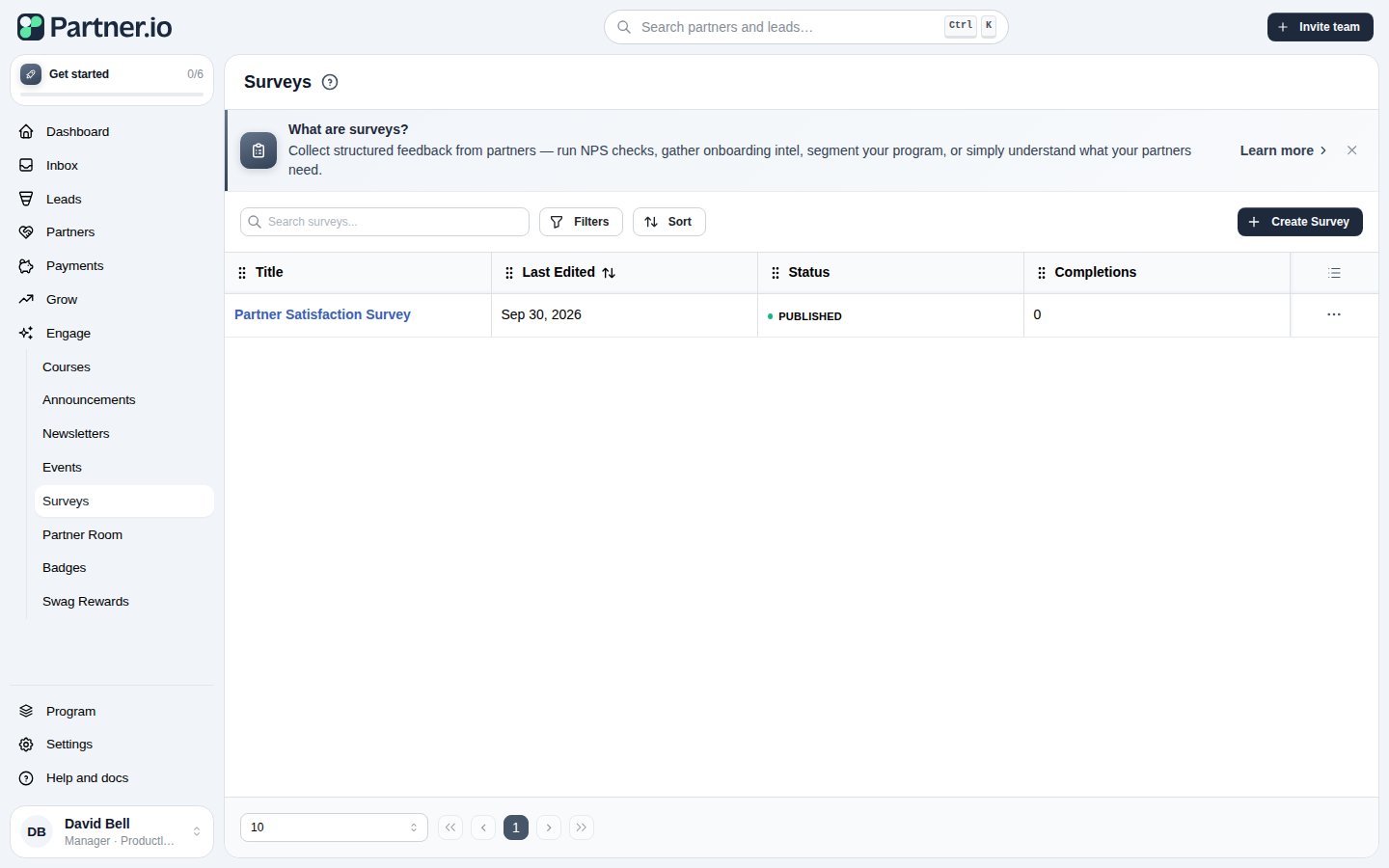
Go to Engage > Surveys in your admin dashboard. Every survey you've created is listed here with its status, when it was last edited, and how many partners have completed it. Use the search box, filters, and sort to find a specific survey.
Creating a survey
Click Create Survey to choose a starting point. Pick a ready-made template — organized by category such as Satisfaction, Onboarding, Business Review, Program, Product, Events, and Support — or start from a blank form.
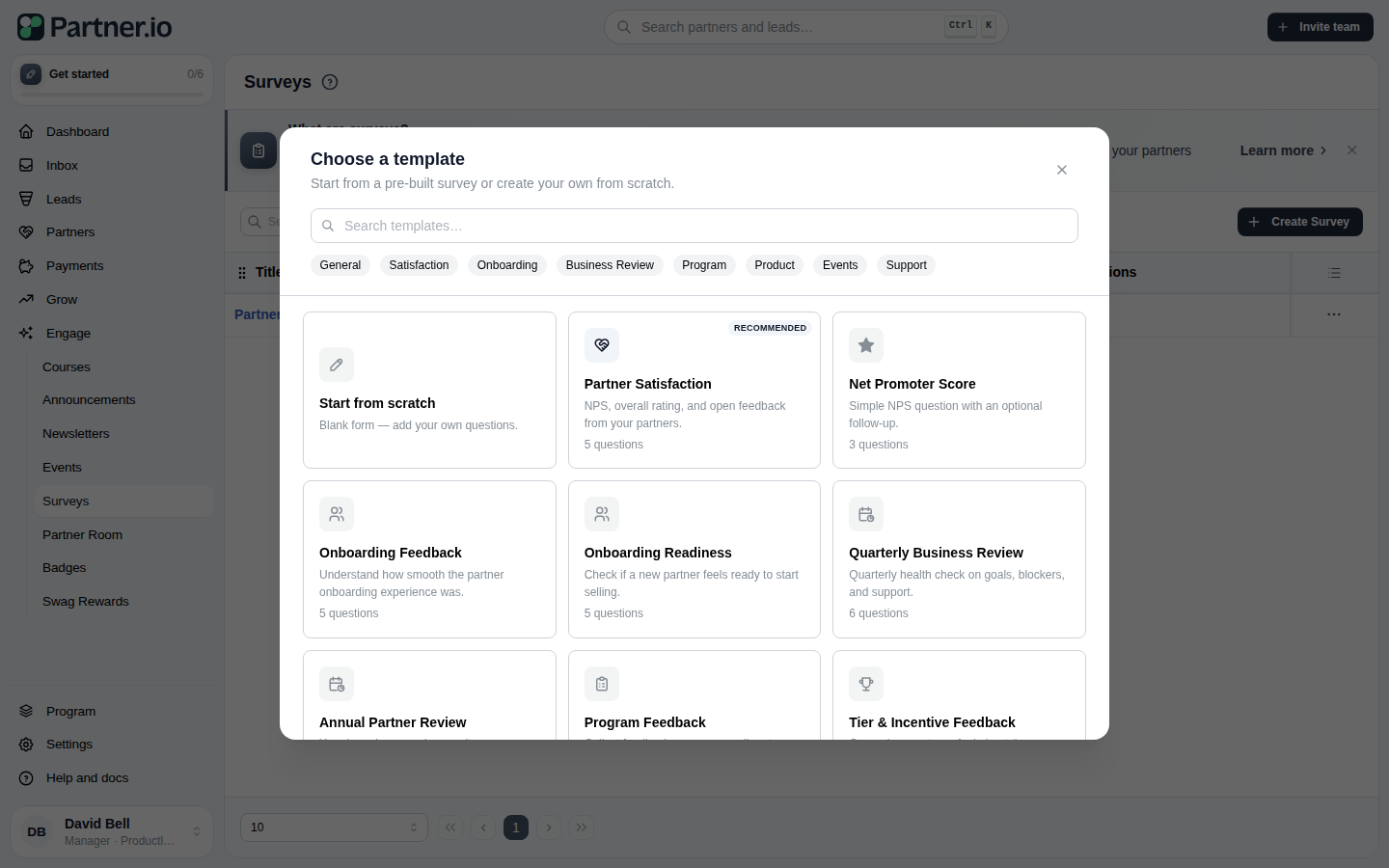
A template pre-fills a title and a set of questions you can edit freely. Starting from scratch opens an empty form with a single question to build on.
Building the survey
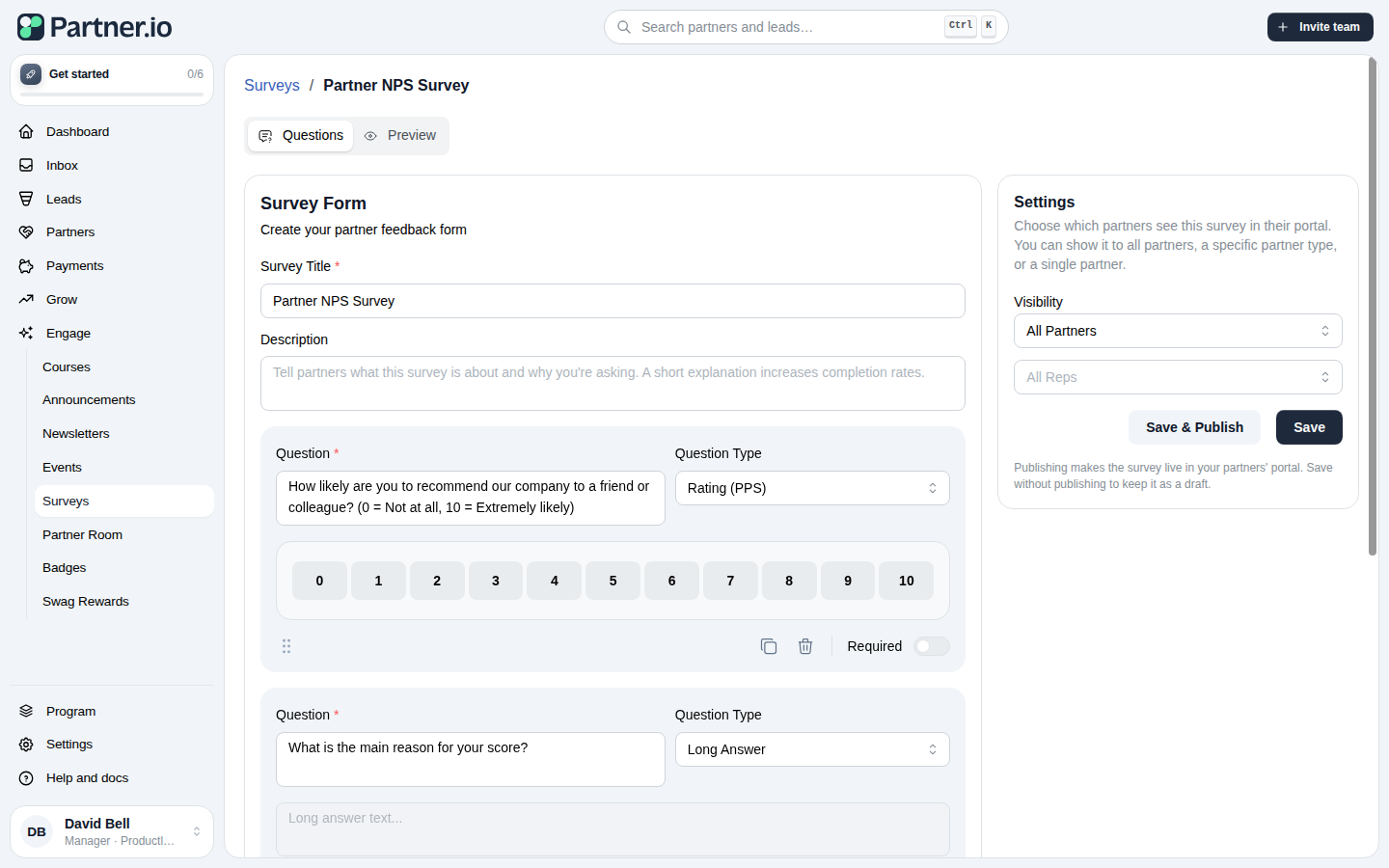
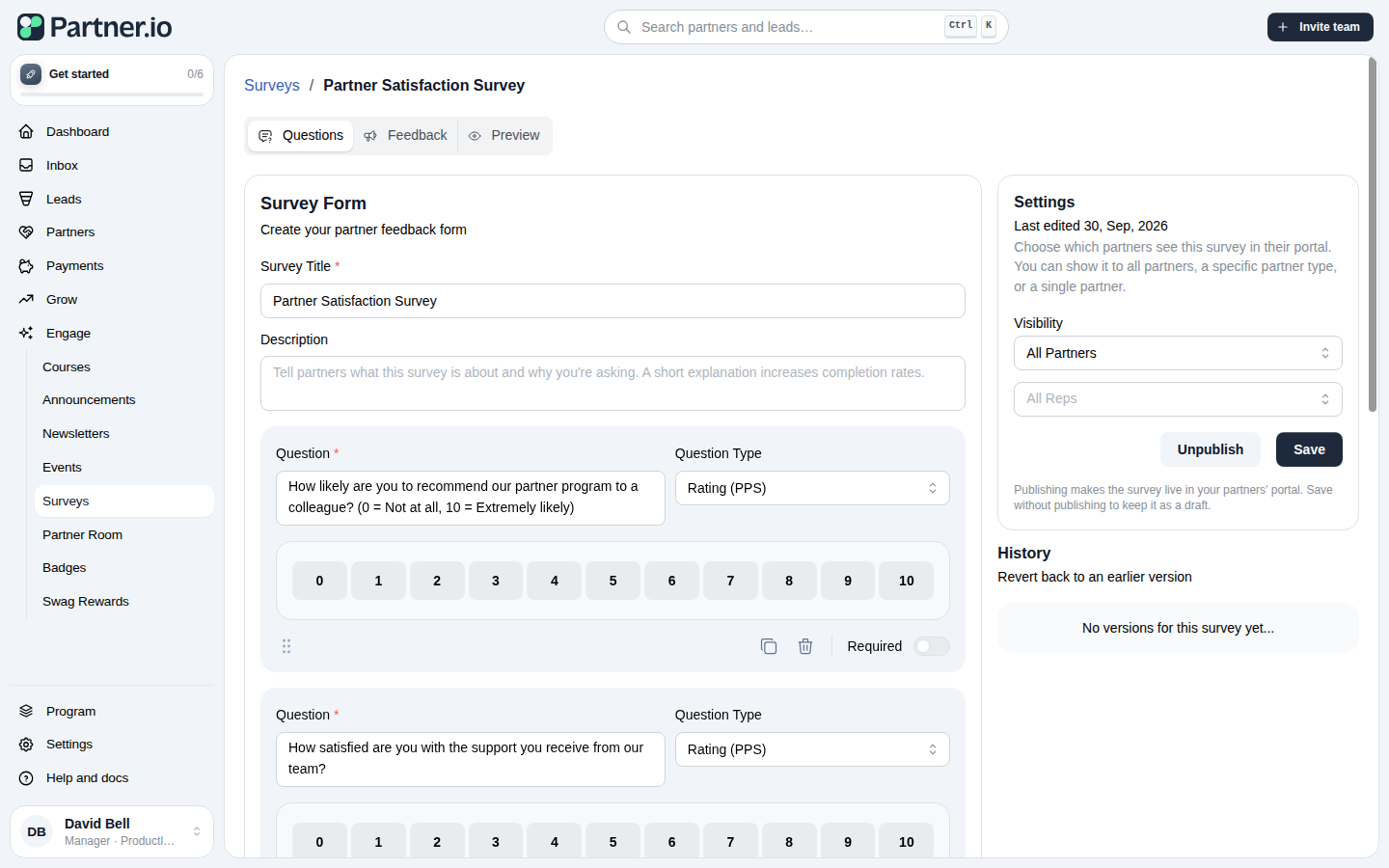
On the Questions tab, give the survey a title and an optional description, then add and edit its questions. Each question has:
Question — the text partners will see
Question Type — Short Answer, Long Answer, Number Answer, Select, Multiple Choice, or Rating (PPS), a 0–10 scale for Net Promoter Score–style questions
Required — whether a partner must answer it before submitting
Select and Multiple Choice questions let you add, edit, and remove their answer options. Every question type except Rating also has optional description and placeholder text under Additional Question Settings.
Drag a question by its handle to reorder it, or use the duplicate and delete icons next to it. Click Add Question to add another.
Choosing who sees it
In the Settings panel, set Visibility to control which partners the survey is shown to:
All Partners — every partner in your program
A single partner — only that partner's reps
You can narrow this further with the rep selector: pick specific partner reps to show the survey to exactly those people, across any partner, regardless of the Visibility selection above.
Saving and publishing
Use Save to keep your changes as a draft — partners won't see anything until you publish. Use Save & Publish to make the survey live in your partners' portal; partners within its visibility are notified. A published survey can be Unpublished at any time, which pulls it from partners' portals without deleting it or the responses already collected.
Previewing
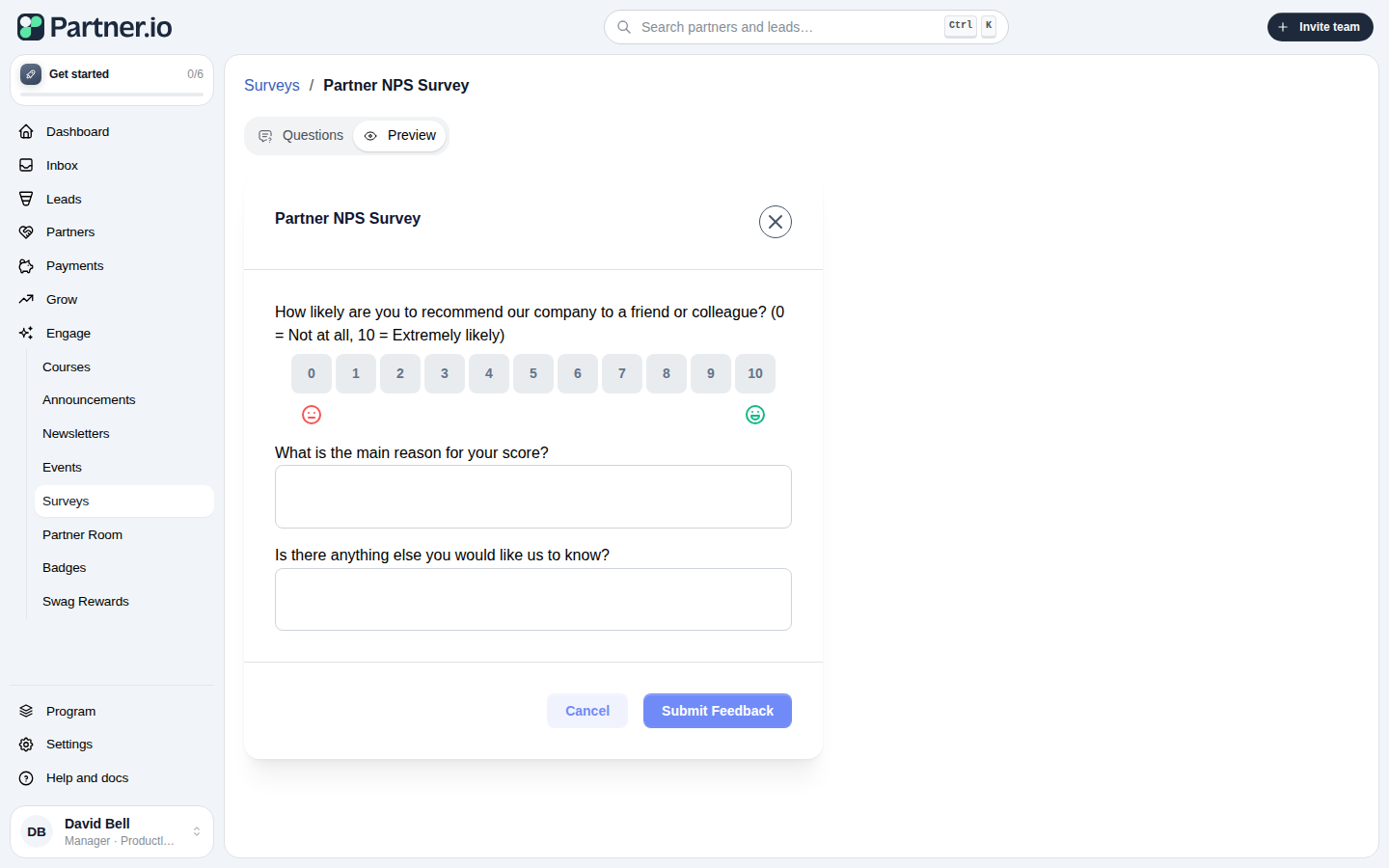
The Preview tab shows exactly what partners will see when they open the survey, including your portal's branding.
Reviewing feedback
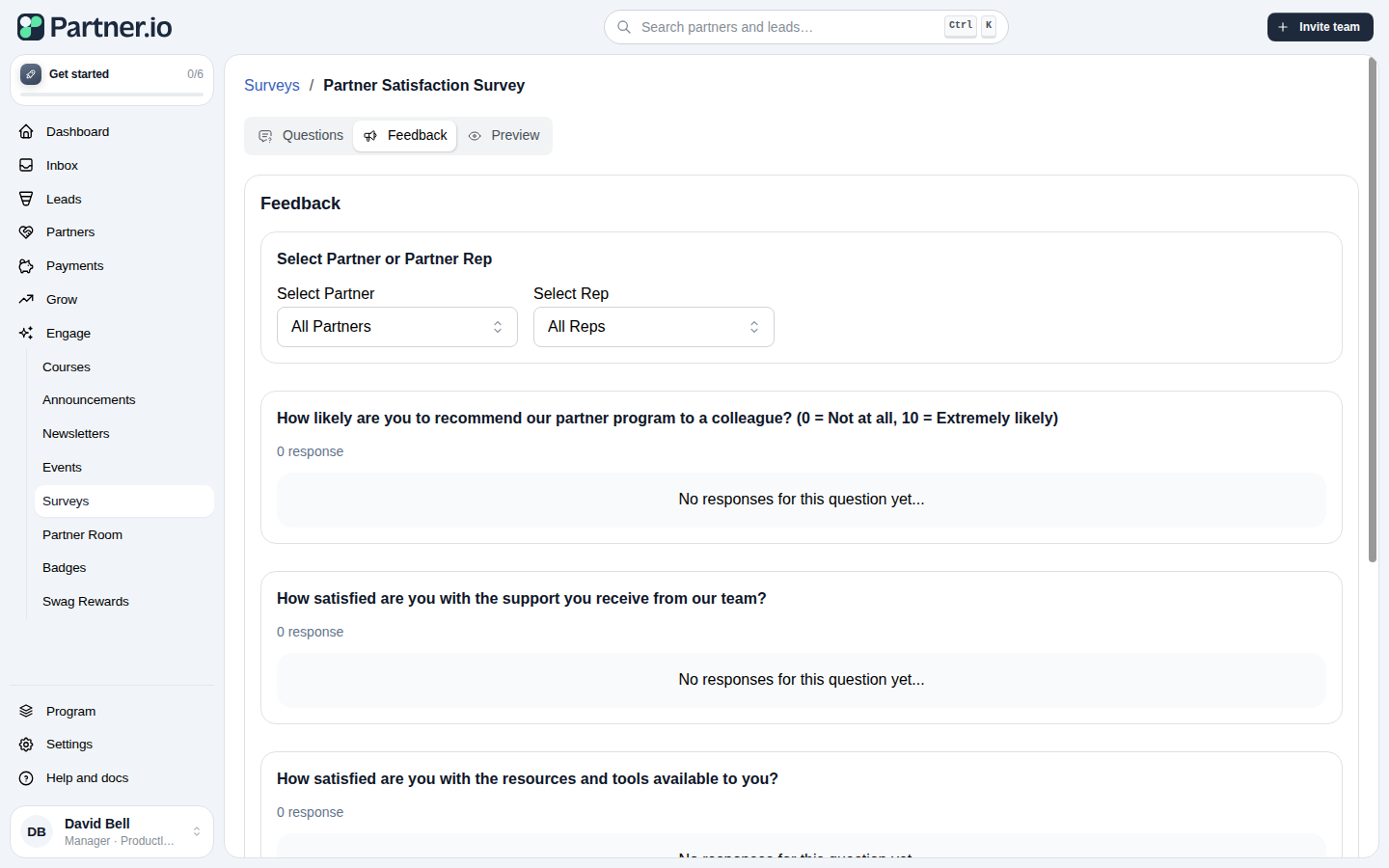
Once a survey has responses, open its Feedback tab to see results broken down by question. Filter by partner or partner rep to narrow what you're looking at. Select and Multiple Choice questions show a breakdown chart, Rating questions show the Net Promoter Score results, and open-ended questions (Short Answer, Long Answer, Number Answer) list each individual response.
Editing a published survey and version history
Editing and saving a published survey creates a new version and keeps the previous one in the History panel, so you can revert to an earlier version at any time.
A partner who already submitted a response sees that they've already answered. If you edit a published survey's questions afterward, they're offered the option to retake it with updated answers.
Deleting a survey
From the list, open a survey's row menu and choose Delete. This permanently removes the survey and all of its responses — this cannot be undone.
How partners see a survey
A partner is notified when a survey becomes visible to them and can open it straight from their notifications to answer it. A survey can also be attached to an announcement, so a partner can answer it right inside that announcement without leaving it.