

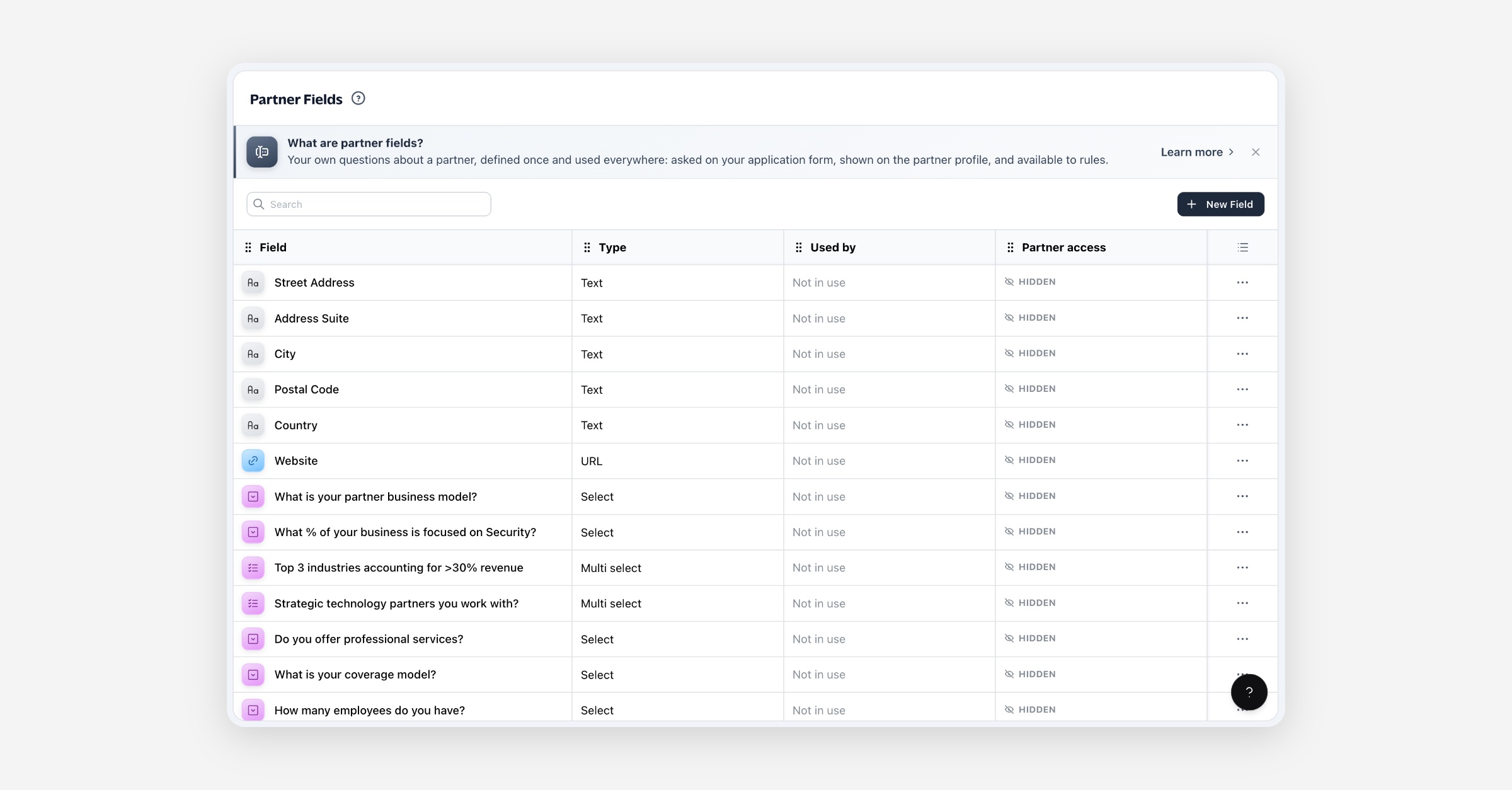
Partner fields are the things you want to know about a partner beyond what every program tracks. Define a field once, then use it wherever you need it: ask it on your application form, fill it in on a partner's profile, or write rules against the answers.
You'll find them under Partners → Partner Fields.
Before you start
Nothing is required first. You can define fields before you have a single partner — they'll be ready the moment someone applies.
A field is a definition, not a question on a particular form. Creating one and asking it are separate steps, which is what lets the same field appear on your application form and on every partner profile without being defined twice.
Creating a field
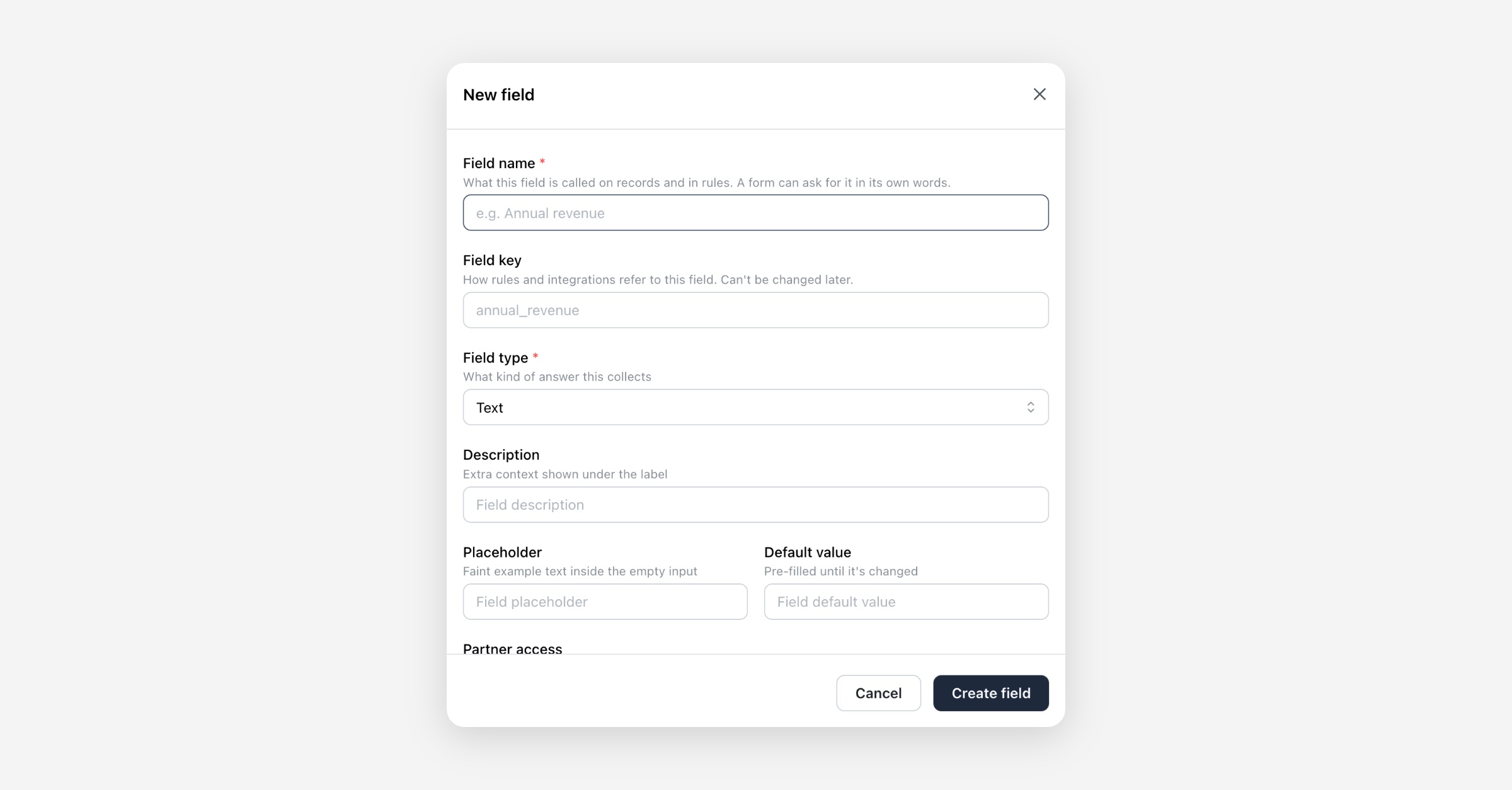
Select New Field.
Give it a name — what the field is called everywhere in your account.
Set the field key if you want something other than the one suggested. This is how rules and integrations refer to the field.
Choose a field type — what kind of answer it collects.
For a Select or Multi select, add the choices.
Optionally add a description, a placeholder, and a default value.
Set Partner access — what partners can do with it on their own record.
Select save.
Field names must be unique within your account, and a field key must start with a letter and use only lowercase letters, numbers and underscores.
Field types
Type | What it collects |
|---|---|
Text | Short free text. |
Long text | Multi-line free text. |
An email address, checked as it's typed. | |
URL | A web address. |
Phone | A phone number. |
Number | A plain number. |
Money | An amount with a currency. |
Date | A calendar date. |
Checkbox | A single yes or no. |
Select | One choice from a list you define. |
Multi select | Several choices from a list you define. |
A Select or Multi select keeps answers to a fixed list, which makes them easier to write rules against later than free text.
What you can and can't change later
Name | Change any time. It updates everywhere the field appears. |
Description, placeholder, default value | Change any time. |
Partner access | Change any time. |
Choices | Add, rename and reorder any time. A choice a partner has already been given can't be removed — you'll be told which one is in use. Renaming keeps existing answers. |
Field key | Fixed. Rules and saved answers point at it. |
Field type | Fixed. Answers are stored by type. To change a type, create a new field and delete the old one. |
Partner access
Every field carries one setting for what partners may do with it on their own record.
Setting | What the partner sees |
|---|---|
Hidden | Nothing. The field is for your team only. |
View only | The field and its answer, with no way to change it. |
Editable | The field and its answer, which they can update. |
Partner access affects what partners see, and nothing else. A hidden field is still a normal field to you: it shows on the profile for your team, and rules can read it.
Where answers come from
Your application form. Put a field on your Partner Application and applicants answer it as they apply. See Partner application form.
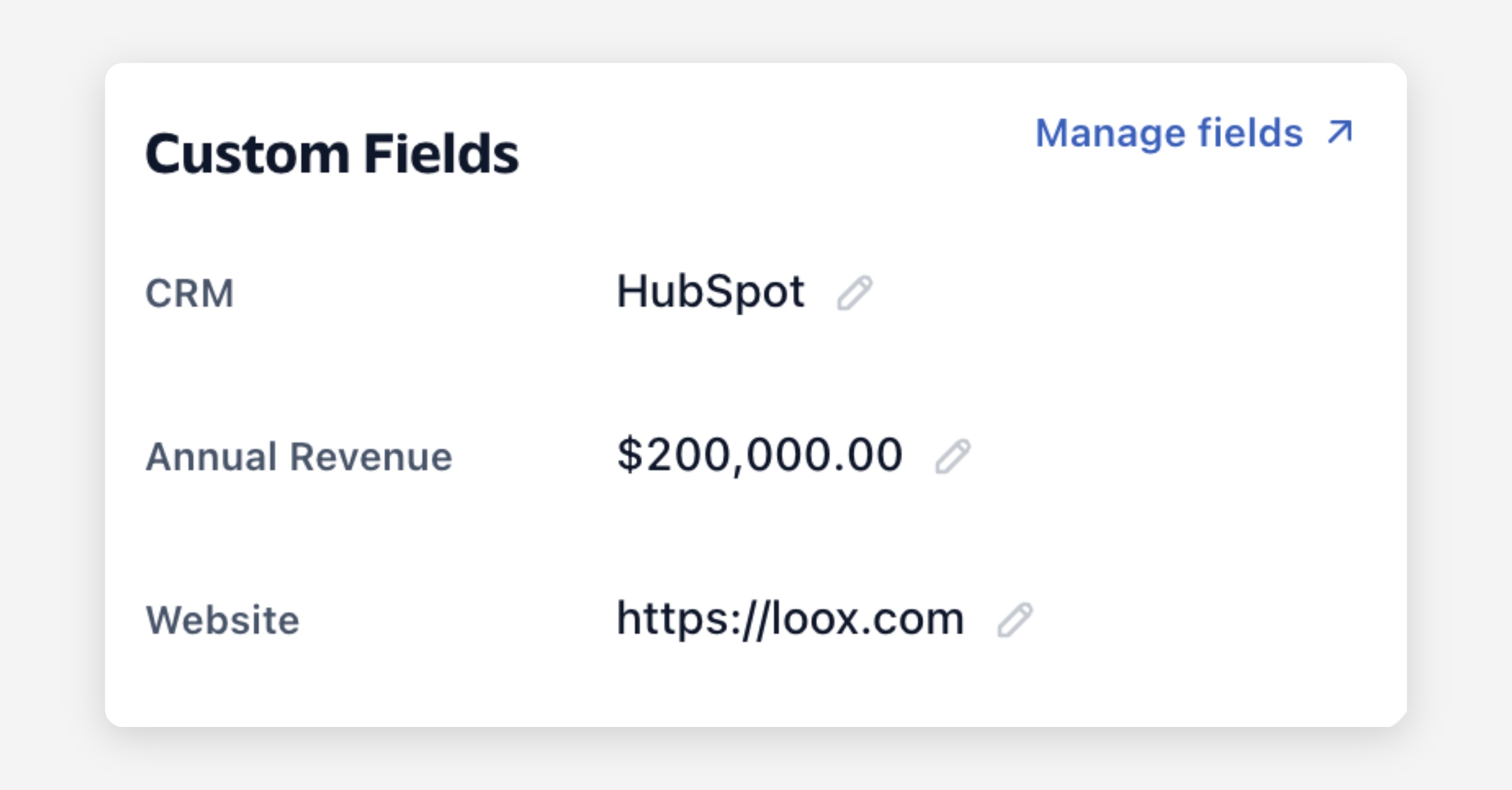
A partner's profile. Every field appears on every partner profile whether or not it's on a form, so your team can fill in or correct an answer at any time.
A partner themselves, if the field is set to Editable.
The API. Answers can be sent in when a partner is created or updated through the API.
Managing your fields
Edit — select any field in the list.
Duplicate — copies a field's settings into a new one, so a near-identical field doesn't have to be built twice.
Delete — see below.
Search — filter the list by name or field key.
Deleting a field
Deleting tells you what it would affect before it goes ahead.
A rule that references the field blocks the deletion. You're shown which rules use it and asked to change or remove them first.
Answers are counted — you're told how many partners will lose their answer.
The field is removed from every form and record it appears on. If it's on your application form, the form stops asking for it.
Deleting is permanent. If you only want to stop asking for something, remove that question from your application form instead and the field and its answers stay.
Rules
Answers are available as conditions wherever you build rules, so a rule can read what a partner told you.
A rule reads the current answer whoever provided it, so the same rule matches an answer an applicant gave on your form, one your team filled in on the profile, and one the API set.
Limits
A name, description, placeholder, choice label and choice value are each up to 255 characters.
A field key is unique within your account, per record type.
Choice values must be distinct within a field.
FAQ
Is a partner field the same as a partner attribute? No. Attributes are labels you apply to partners to segment and filter them. A partner field records an answer — a value per partner, of a type you choose, that can come from an application form.
Can I reuse a field on my lead form? No. A field belongs to one record type. Lead questions are managed separately under Lead fields.
If I rename a field, do existing answers change? No. Answers point at the field, not its name, so renaming is safe at any time.
Does a default value force an answer? No. A default pre-fills the box so the applicant sees a suggestion. They can clear it and submit nothing.
Why can't I edit the field behind a built-in question on my form? Built-in questions — Name, Company Name, Email, Partner Type and Phone Number — are defined by Partner.io because creating a partner record depends on them. They aren't partner fields and have no entry here.
A worked example
You want to know which region each partner covers, and you want applicants to tell you when they apply.
Under Partners → Partner Fields, select New Field.
Name it "Region", choose Select, and add your regions as the choices.
Set Partner access to View only so partners can see which region you have them in without changing it.
Save.
Go to Portal → Partner Application and add "Region" as a question. Word it "Which region do you cover?" if that reads better on the form.
Applicants now pick a region as they apply, the answer lands on their profile, and you can write a rule against it.